Cloud preset library
Your presets sync to the cloud, so the same library shows up in the panel and on the website. Save a preset in Premiere and it's waiting for you in your account. Organize it there and the changes flow back to the panel.
Where your presets live
There are two views of the same library:
- In the panel you'll find the Presets tab, right next to your generations.
- In your account it's the My presets page in your account area on the website.
Both read from the same cloud library. When the panel loads, it pulls your presets down and merges them with your feed, so anything you saved elsewhere is already there.
How many presets fit
The cloud library comes with a paid plan: Pro holds 10 presets, Studio holds 50. On Free, and without a plan, there are no cloud slots. Presets you save still work, they just stay on the machine that made them and don't sync anywhere. The counter on the My presets page shows how much of the limit you're using. When the library is full, a new save still lands on your machine, the panel just tells you it wasn't backed up to the cloud. Deleting old presets (or upgrading the plan) frees the space; presets already in the cloud never get deleted by the limit.
A preset's images and textures live on our servers for as long as the preset does. Delete a preset, and those files are cleared from our servers within about a day.
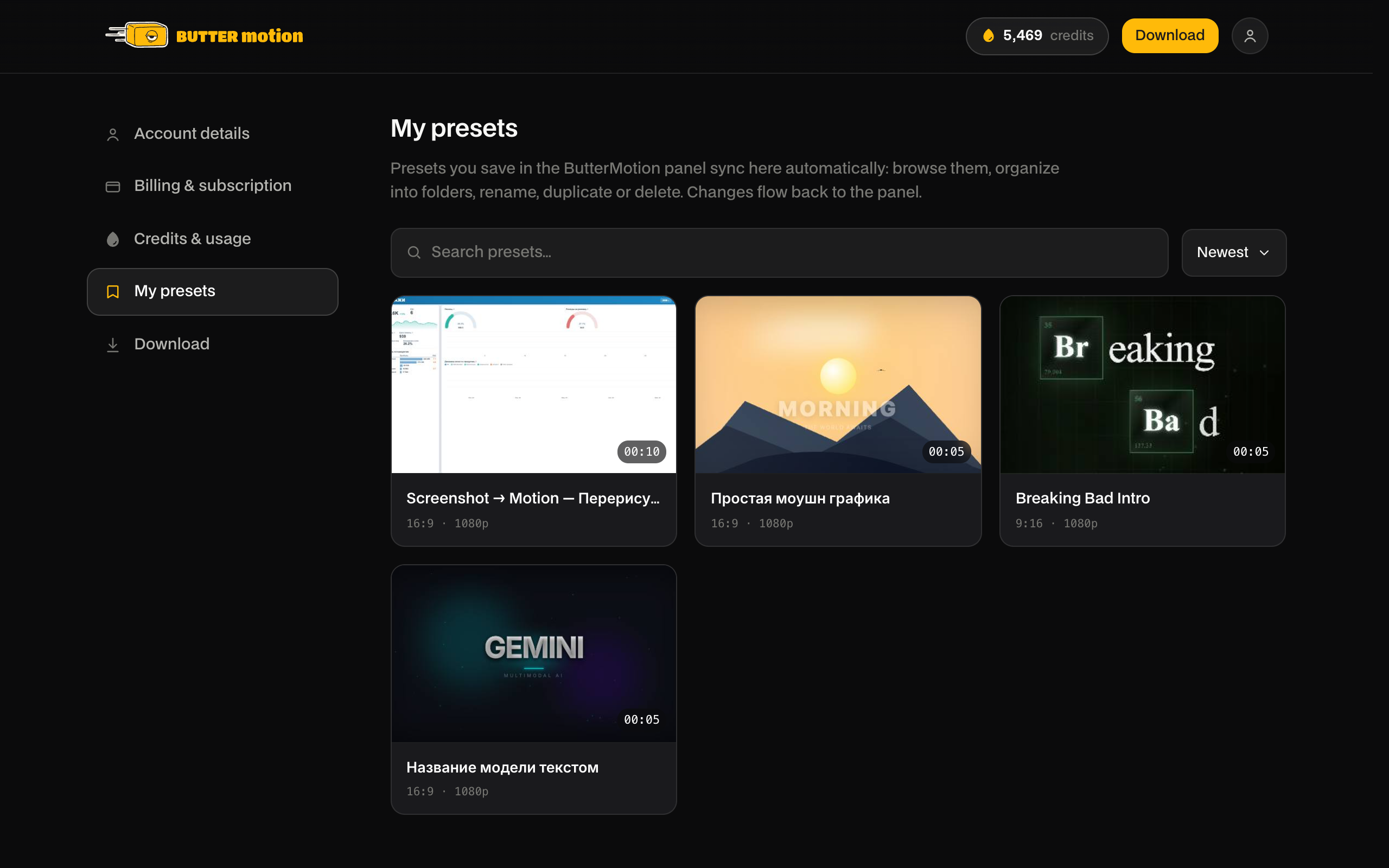
Find and organize
The My presets page gives you room to keep a big library tidy:
- Search filters the library by name as you type.
- Sort orders presets newest, oldest, or A-Z / Z-A.
- Folders group presets together. Create a folder and move presets into it from the preset's detail view.
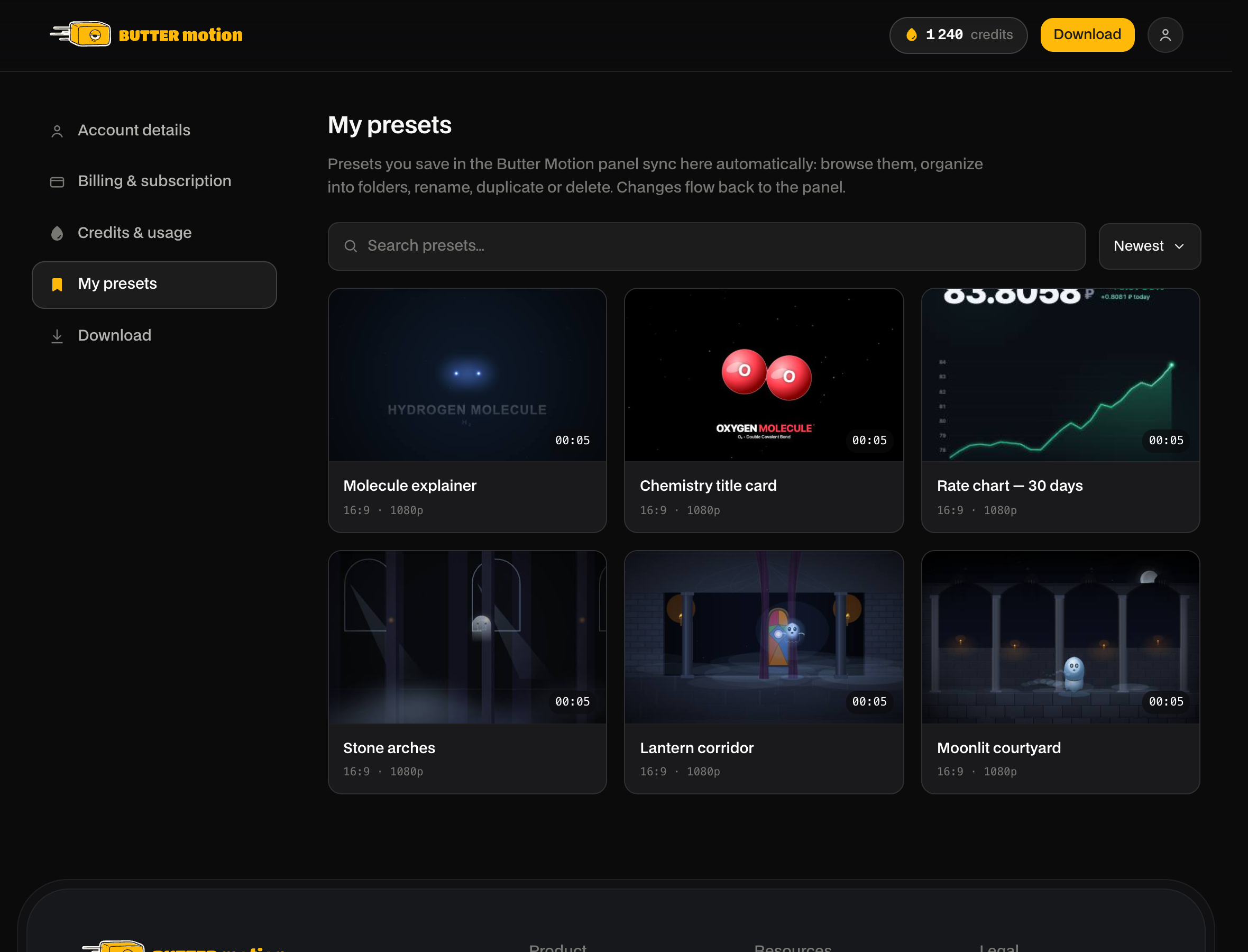
Open any preset to see its preview, its Folder field (pick an existing folder or create a new one), and three buttons: Rename, Duplicate, and Delete. Duplicate is the one action the panel doesn't have.
Changes made in your account sync back to the panel. Rename a preset or drop it into a folder on the website, and the panel picks it up the next time it loads your library.