Add up to 5 images to a generation
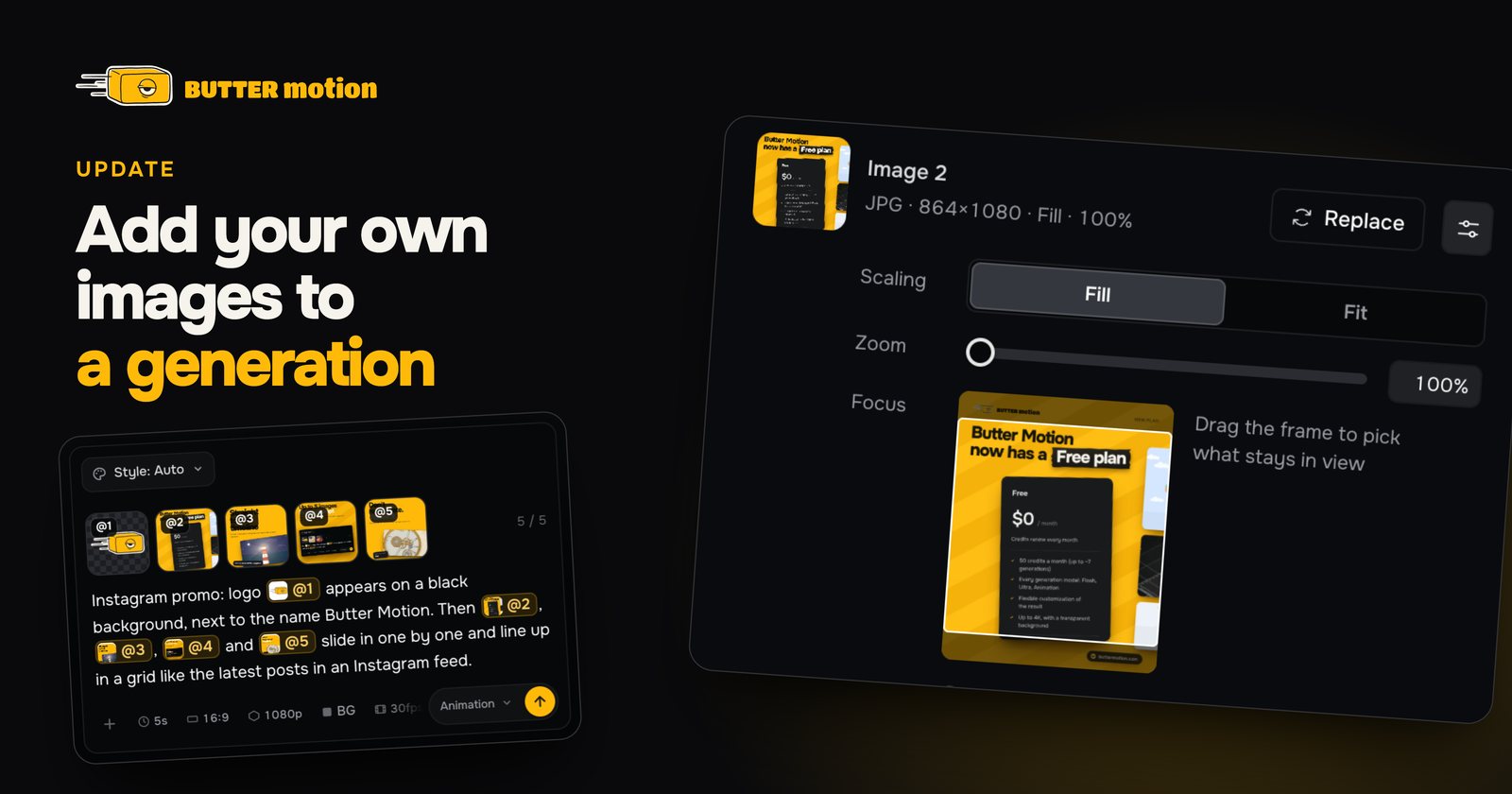
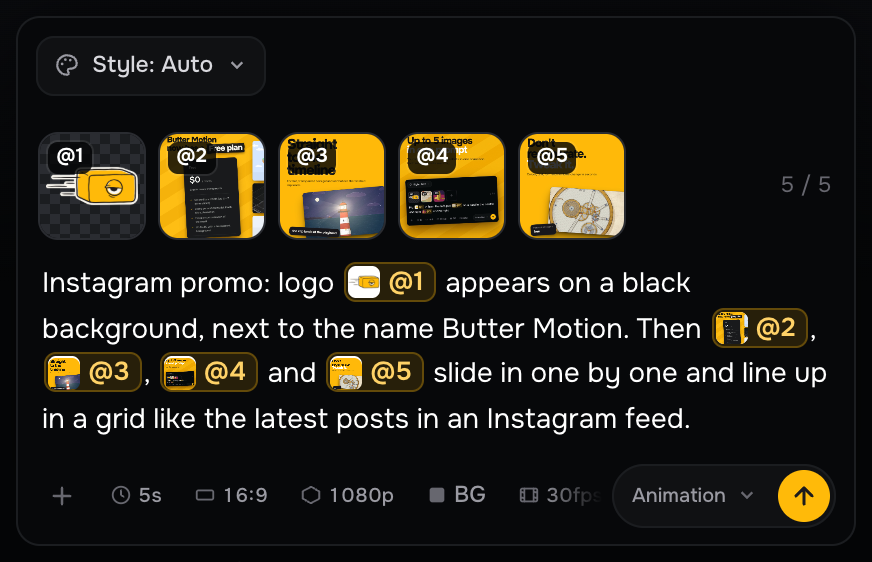
You can attach up to 5 images to one prompt. Each one gets its own tag from @1 to @5. Use the tag to say in your own words what to do with the image.
Instagram promo: logo @1 appears on a black background, next to the name Butter Motion. Then @2, @3, @4 and @5 slide in one by one and line up in a grid like the latest posts in an Instagram feed.
Here is what this prompt gave on the Animation model with the UI style:
How it works
- In the composer, click +, paste with Ctrl/⌘ + V, or drop the files anywhere onto the panel. Several at once work too.
- The images appear as numbered tiles above the prompt. Each new image drops its tag into the text where your cursor is.
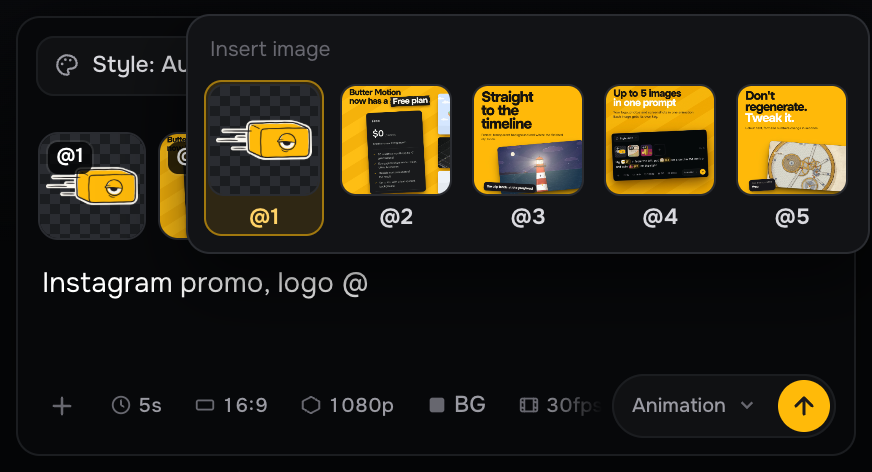
- Type @ to pick an image from the tiles. Click a tag in the text to see the picture in full.
- Remove an image with the cross on its tile, and the tags renumber on their own.
Customizing images in a finished generation
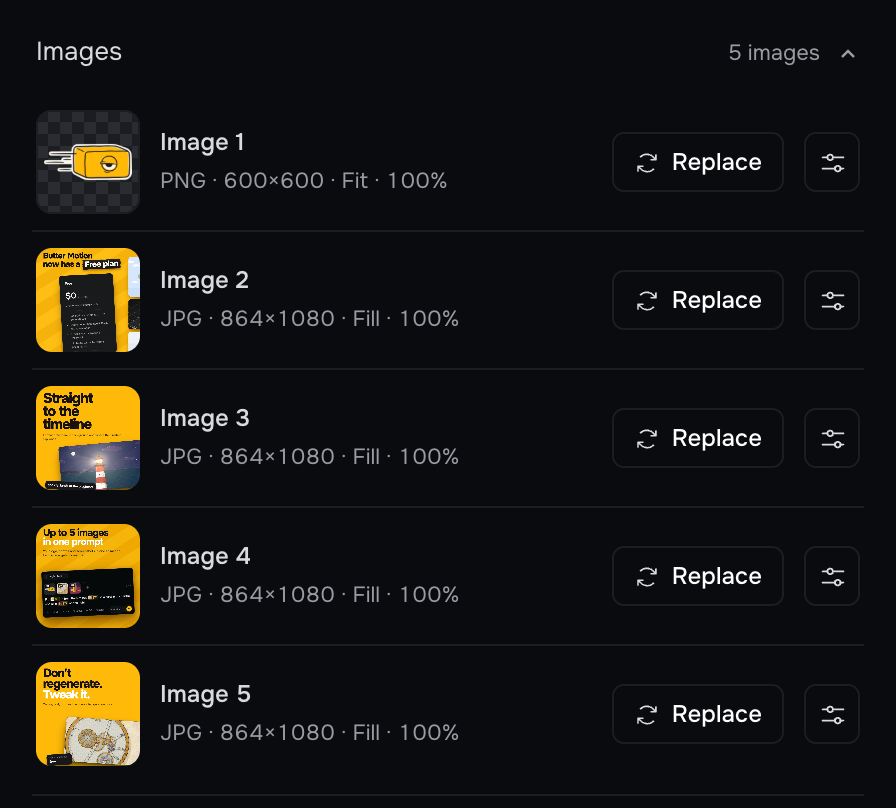
Every picture in the clip gets its own row in Customize › Images. Click Replace, pick another file, and the image is swapped with no new generation. All that's left is to render.
On Animation scenes, the settings button opens the adjustments: Fill or Fit, Zoom up to 300%, and the Focus frame that picks the visible part of the image. Like every control, it's free.
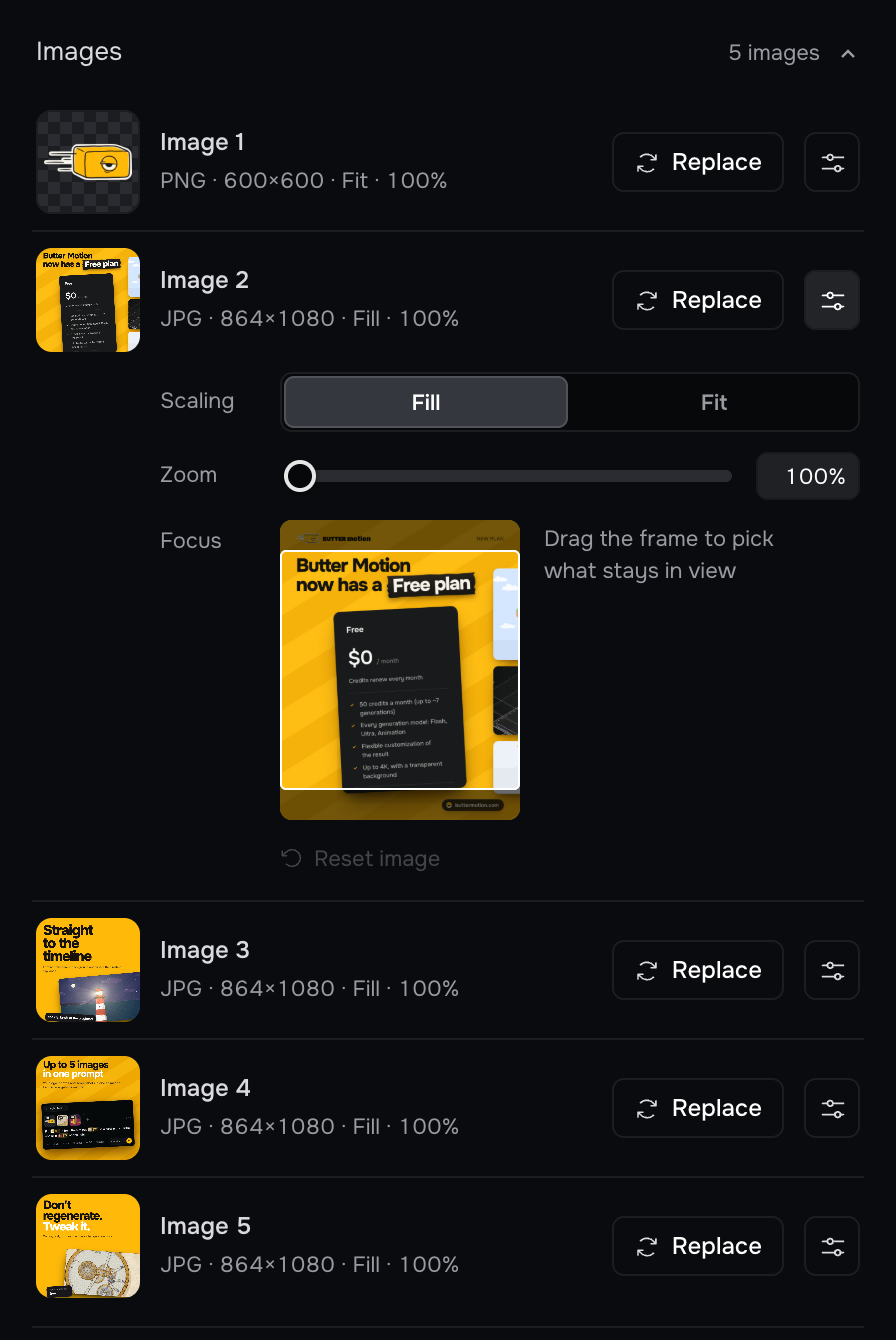
Images and settings when you tweak a generation
The Tweak bar inside a generation now has a settings button. It opens the clip's images and the settings of the first prompt.
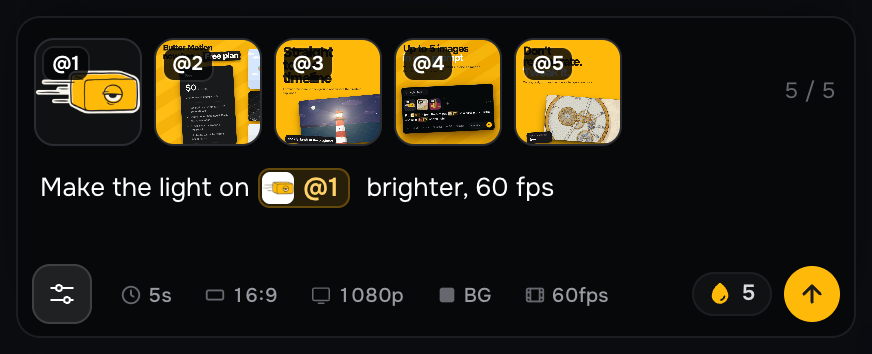
- The images sit on top with their tags @1, @2 and so on, just as in the prompt. Point to an image in words: «make the light on @1 brighter». Type @ to pick it from the tiles.
- Click + to add a new image, it gets the next tag. Up to 5 images, up to 25 MB each.
- Below are the length, format, resolution, background and fps. Change any of them, and the tweak applies it together with your words. Words are optional: change the fps, press send, and the clip is rebuilt. It costs the same as any tweak.
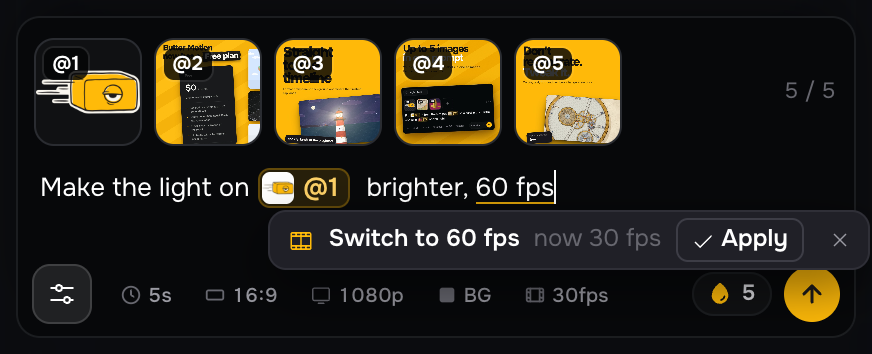
Settings from your words
Write «60 fps», «4K» or «15 seconds» in a prompt or a tweak, and a hint under the word offers to switch that setting. Apply changes it, × closes the hint. Keep typing and it fades on its own after a few seconds. It understands frame rates (24, 25, 30, 50, 60), resolutions (720p, 1080p, 1440p, 2K, 4K, Full HD) and lengths in seconds. If the length is above the tier limit, it offers the limit: 10 seconds on Animation, 20 seconds on the other models.
Works on every tier
Flash, Ultra and Animation, on every plan including Free. PNG, JPEG, WebP, GIF, BMP, AVIF, SVG, HEIC and more.
Step-by-step guides: Writing prompts, Controls and Editing a generation.