Customization controls
Every generation comes with its own controls: colours, text, sizes, camera, speed, optional elements. You change the clip by hand, see the result in the preview at once, and spend no credits. Describing a change in words is a separate thing, see Editing a generation.
Where they are
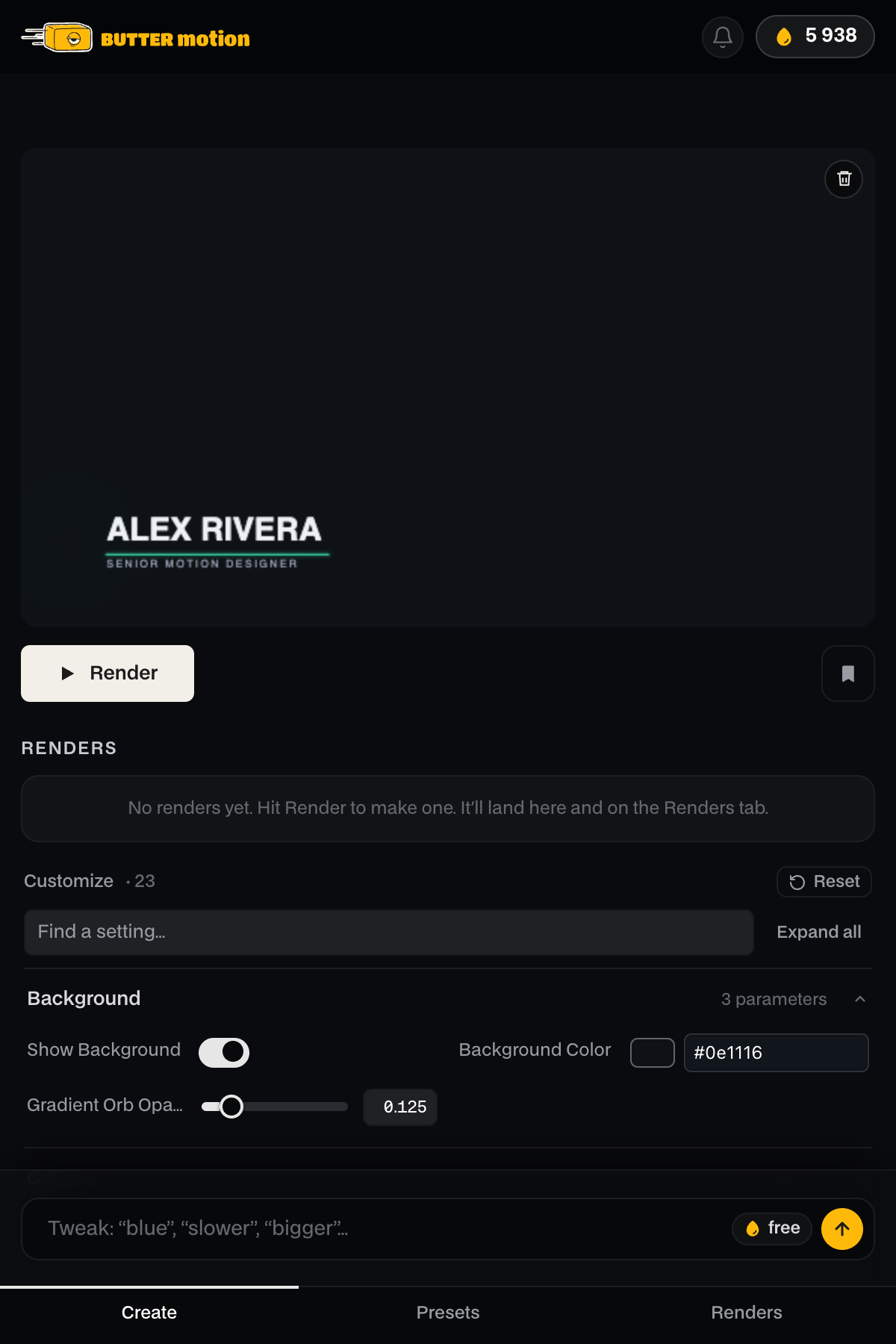
Open a card. Under the preview and the Render button you'll find the Customize block: the number of controls, a Find a setting… search, Expand all and Reset. Controls are grouped (Colors, Text, Size, Motion, Camera, Scene, Sound…). The first group is open, click any other to expand it.
Example: the lighthouse
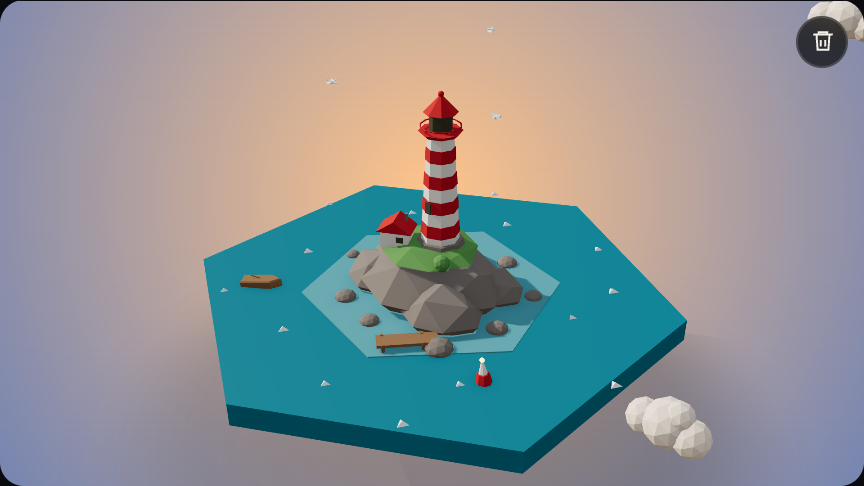
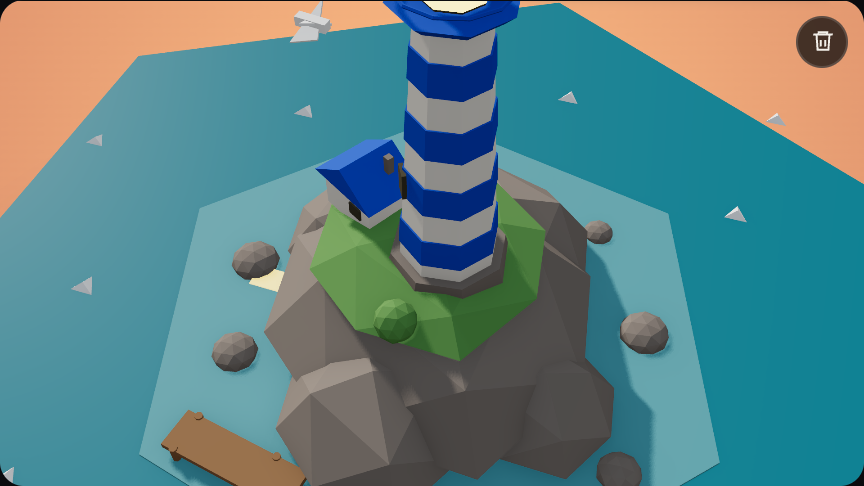
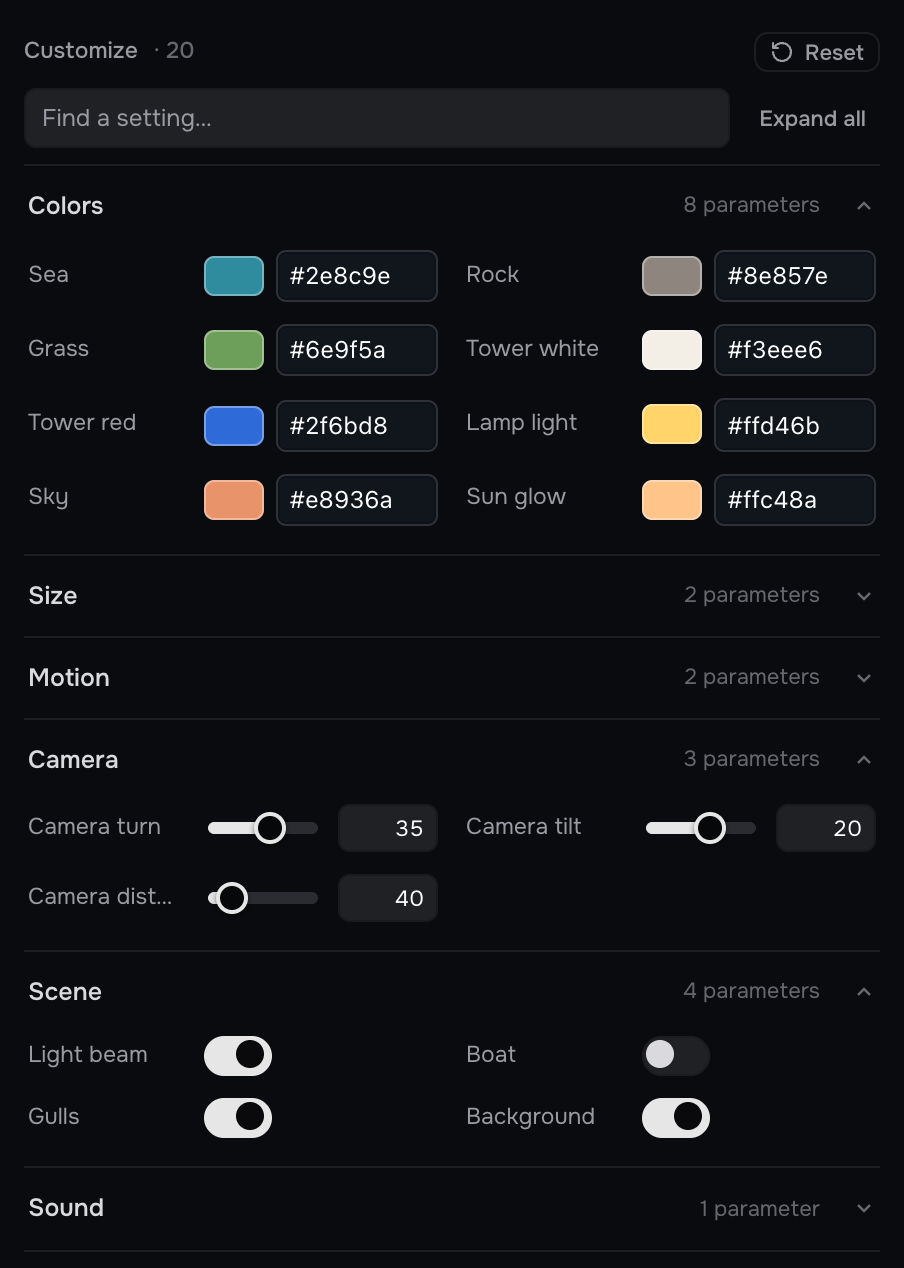
The scene below came from the Animation tier (Low-poly 3D style) with the prompt "A red and white lighthouse on a small rocky island, its beam sweeping across the sea at dusk". Six changes, about ten seconds, no new generation:
- Tower red set to blue, so the stripes and the roofs turn blue.
- Sky set to a warm orange.
- Camera turn moved to 35°.
- Camera distance down to 40 and Camera tilt up to 20, so the camera comes in close and looks down at the island.
- Boat switched off in the Scene group.
What you can change
The set depends on what is in the clip. A chart gives you its values and labels, a lower third its lines of text, a 3D scene its camera. Typical controls:
- Colours: pick a swatch or type a hex value for any fill, text or accent.
- Text: rewrite any words on screen.
- Font: pick another typeface. Fonts installed on your computer are in the list too.
- Numbers and sliders: values, percentages, sizes, speed. Drag the slider or type the number.
- Toggles: switch optional elements on or off (a boat, the gulls, the background).
- Camera on 3D scenes: turn (angle around the subject), tilt (height), distance and, on full 3D scenes, field of view. The scene's own camera move keeps playing on top of your values.
- Object on 3D scenes: turn the main object on all three axes and change how fast it spins, separately from the camera.
- Position: move the main elements around the frame (X and Y in percent of the frame). Reset positions puts them back.
- Sound: switch the clip's sound on or off.
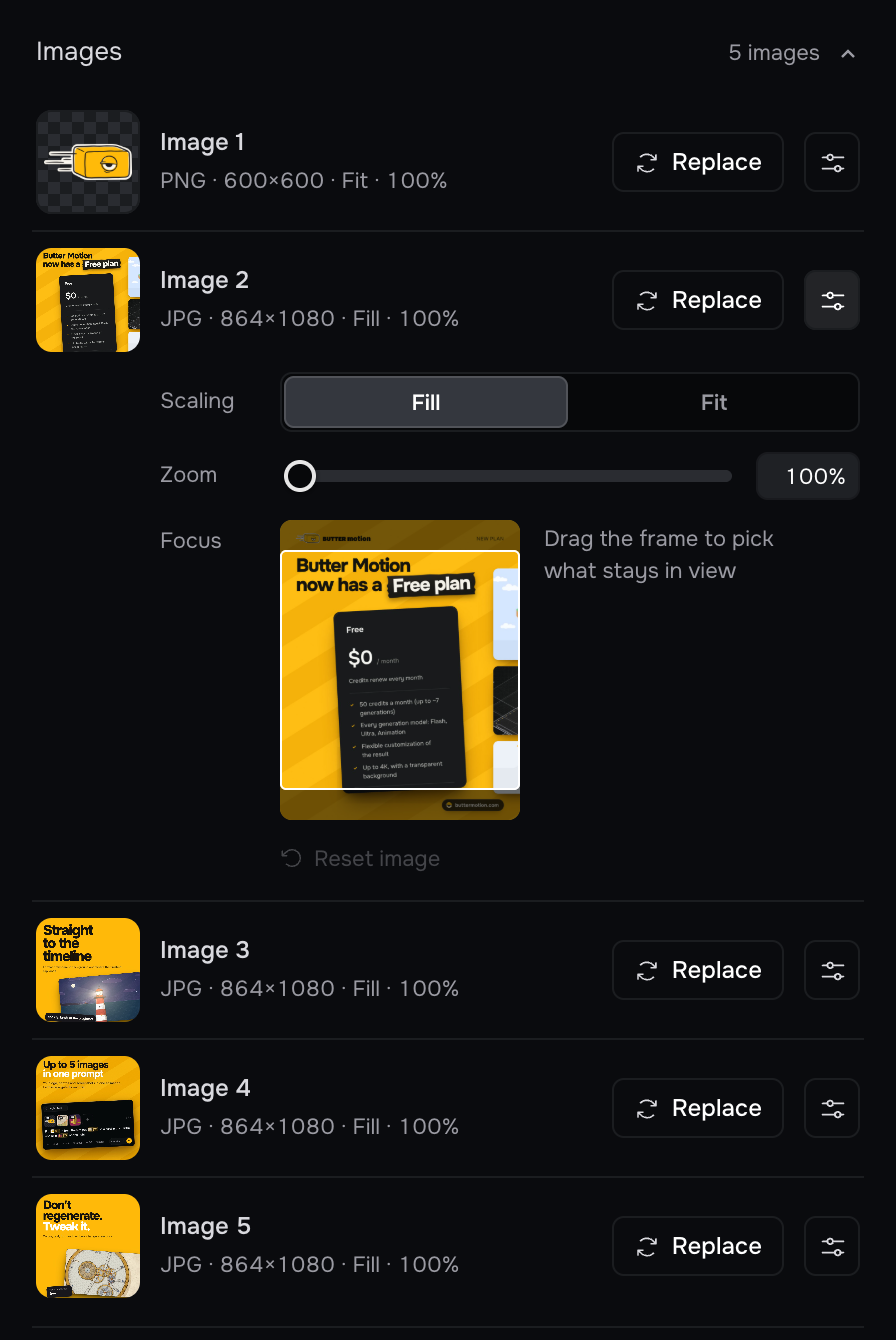
- Images: the pictures you attached show here with Replace. Pick another file and it takes the same place, with no new generation. On Animation scenes, open the row to fit the picture into its frame: Fill or Fit, Zoom up to 300%, and Focus, where you drag the frame to pick which part stays in view. Reset image puts it back. Pictures the AI redrew aren't listed, since replacing them wouldn't change the drawing.
Find a setting… filters the list as you type, handy on scenes with many controls. Reset returns every control to the generated values.
Free, and the picture stays the same
Controls are free and available on every generation, on every plan including Free.
After you adjust a generation, render it again before you add it to the timeline. See Rendering to the timeline.
Controls or an AI edit?
- Controls: exact values set by hand, instant, free.
- AI edit: describe the change in words, for things that have no control ("add a second boat", "make the waves calmer"). On Pro and Studio the first AI edit of every generation is free and the next ones cost 5 credits. On Free every AI edit costs 5 credits. See Editing a generation.