Writing prompts
A prompt is the sentence that tells the AI what to animate. The clearer you are about the object, the motion, and the style, the closer the first result lands to what you pictured.
The shape of a good prompt
Describe three things: the object, the action, and the style. You don't need perfect grammar, just those three parts.
- Object: what's on screen, like a bar chart, a logo, a headline, a coin, a progress ring.
- Action: how it moves, like growing bar by bar, revealing with a glow, bursting, spinning, filling up.
- Style: the look and feel, like neon, soft, bold, golden, minimal.
Put them together and you get a prompt the AI can build from.
Examples that work
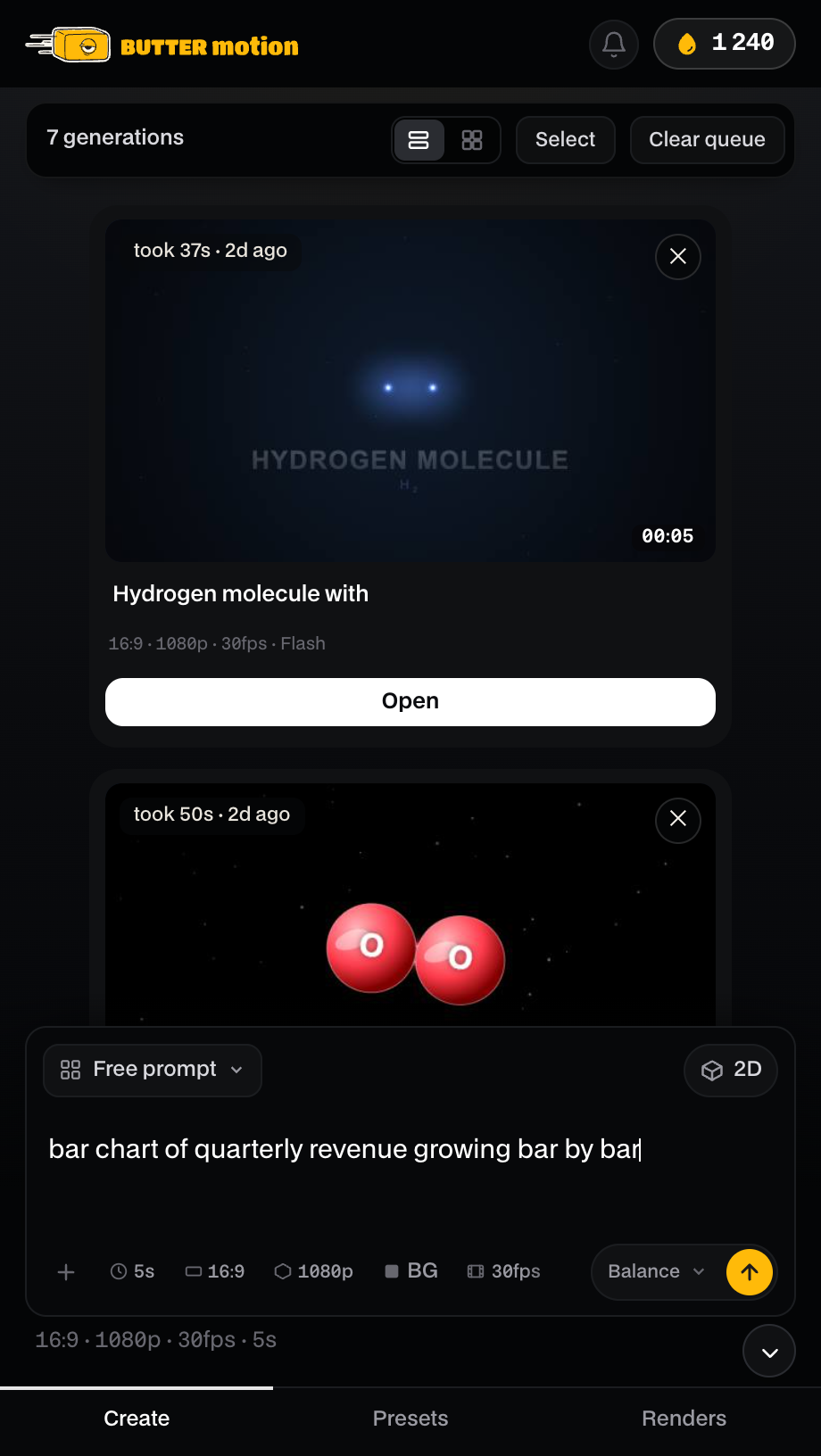
These are the same examples that rotate as hints inside the prompt field, so they're a safe starting point:
bar chart of quarterly revenue growing bar by barneon logo reveal with a soft glowconfetti burst over a bold headlinea coin spinning with golden sparkstypewriter text with a blinking cursorprogress ring filling to 87%
Notice how each one names an object, a motion, and a bit of style in a single line. Start from one of these and swap in your own words.
If the field is empty, Butter Motion cycles through suggestions like these to give you ideas. Just start typing to clear them.
Add reference images
You can attach up to 5 images to one prompt: screenshots, logos, photos, sketches. The AI builds the clip on them.
- In the composer, click +, paste images with Ctrl/⌘ + V, or drag image files anywhere onto the panel. You can add several at once.
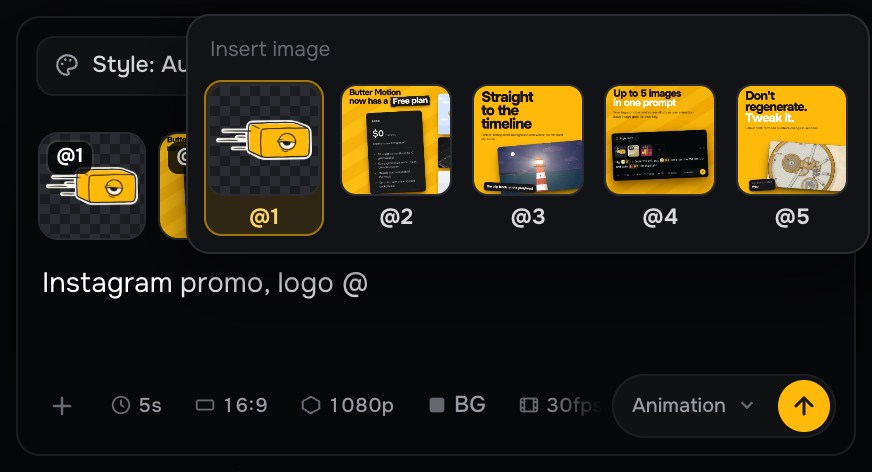
- The images show up as tiles above the prompt, numbered @1 to @5. Each new image also drops its tag into your prompt where the cursor is.
- Point to an image by its tag: "Fly @1 in from the left, put @2 on a card in the centre". Type @ to pick an image from the tiles. Click a tag in the text to see that picture larger.
- To remove an image, hover its tile and click the cross. The tags in your prompt renumber on their own.
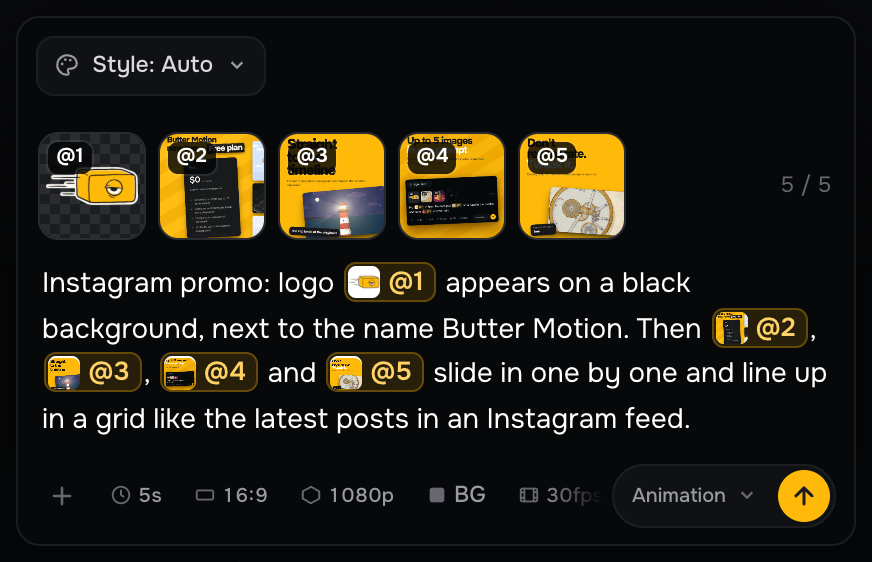
As is, or redrawn. When you ask to keep a logo, an avatar or a photo exactly as it is ("keep the logo exact", "as is", "don't change it"), the picture goes into the animation untouched, transparency included. When you give an image as an example or a style to follow ("in the style of @1"), the AI redraws its subject in the chosen style. With an empty prompt the AI decides on its own.
Files. PNG, JPEG, WebP, GIF, BMP, AVIF, SVG and HEIC (iPhone photos) are accepted. Any other file is turned down with "Only images can be attached: PNG, JPEG, WebP, GIF, BMP, AVIF, SVG, HEIC." Transparent PNGs keep their transparency. Each file must be 25 MB or smaller: a bigger one is turned down right away with "Image is too large. Please use an image under 25 MB." If the images are too heavy together, the panel says "Images are too large together."
An image placed as is can be swapped later in Customize without a new generation, see Controls.
With an image attached, the 2D / 3D switch is hidden, since the AI works from what's in the picture.
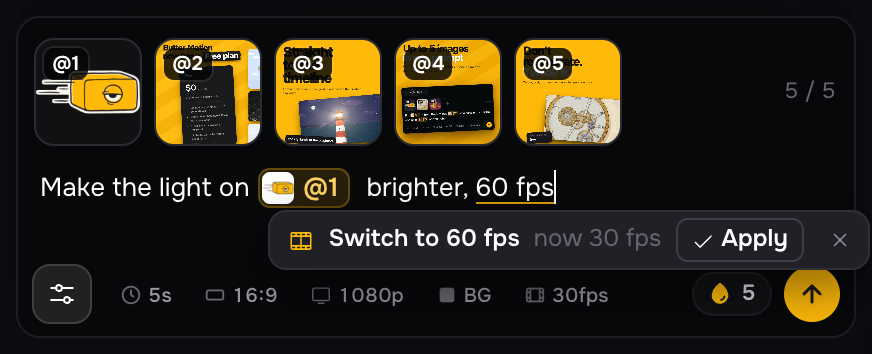
Settings from your words. Write «60 fps», «4K» or «15 seconds» in the prompt, and a small hint under the word offers to switch that setting: Apply changes it, × closes the hint. Keep typing and the hint fades on its own. It works the same in the Tweak bar.
Live data: rates, crypto, weather, date
Butter Motion pulls real numbers from the internet when the scene needs them:
- Currency and crypto rates. Ask for a chart of a known asset ("EUR/USD chart for the last week", "bitcoin candlestick chart"), and it plots real quotes instead of invented figures.
- Weather. "Weather widget for Tbilisi" fetches the current temperature and a 7-day forecast for the named city.
- Date. "Calendar for today" gets the actual current date, which the model doesn't know on its own.
The rules are simple:
- Your own numbers in the prompt ("Bitcoin $73,500") are sacred: nothing is fetched or overridden.
- Words like "real/current" force the fetch; "made-up/sample" turn it off.
- Butter Motion needs internet at generation time; if a data source is down, the scene falls back to the numbers in your prompt.
Limits and what to avoid
- A prompt can be up to 2000 characters. That's plenty for a detailed scene, but you rarely need it all. One focused sentence usually beats a paragraph.
- Keep it to one scene per generation. If you describe five unrelated things at once, the result gets muddy. Generate them separately and combine on the timeline.
- Vague prompts ("make something cool") give vague results. Name the object and the motion.
- Content the AI won't touch gets declined, not generated. Those credits aren't refunded, since the request did go through. See A generation failed.
- You don't need to specify duration, aspect ratio, or resolution in the prompt. Those are set with the chips below the field. See Duration, format & resolution.
Send the prompt
Press the ↑ button, or hit ⌘⏎ / Ctrl + Enter. The generation lands in your feed and starts working. From there, see Queue & generation feed.