Quality tiers & 3D
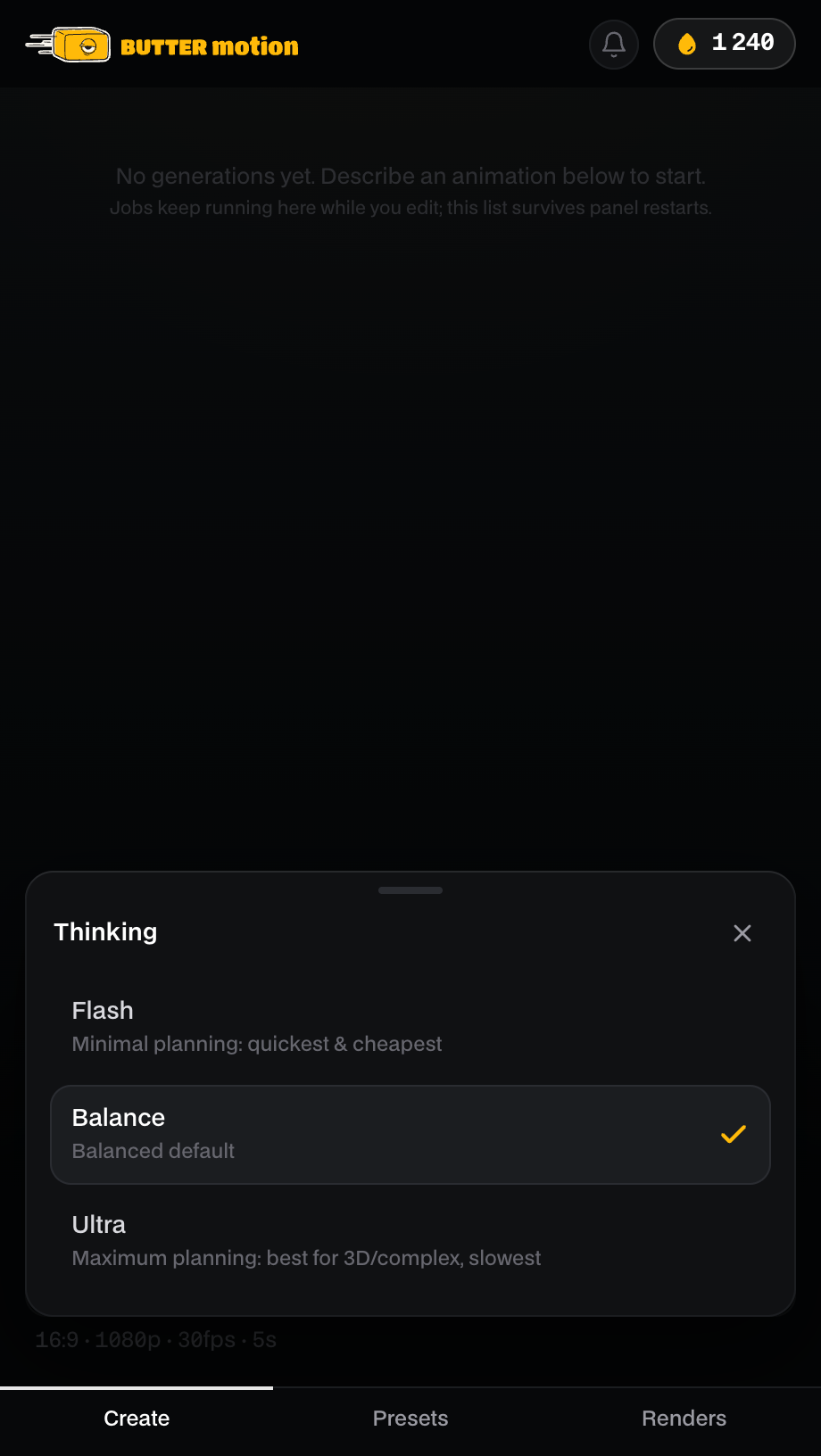
Butter Motion has three tiers, and each one builds your clip in its own way. Flash is the quick one, Ultra thinks the scene through more deeply, and Animation draws a whole illustrated scene in a style you pick. You choose the tier in the box just left of the Generate button.
One prompt, three tiers
Each prompt below went through all three tiers with the same settings (16:9, 6 seconds). Under each clip: the tier, its price and the usual generation time.
"Our sales grew 40% in 2026. A bar chart with one bar per quarter, the last bar rising highest."
"A red and white lighthouse on a small rocky island, its beam sweeping across the sea at dusk."
"A weather card for Amsterdam: today 14°C, partly cloudy with light rain. Below it a 5-day forecast."
More clips from every tier are on the Examples page.
Which tier to pick
| Flash | Ultra | Animation | |
|---|---|---|---|
| Credits | 7 | 10 | 15 |
| Typical time | 1-2 min | 3-6 min | 2-5 min |
| Best for | Titles, lower thirds, callouts, quick drafts | Complex animation, infographics, scenes with depth | A whole illustrated scene: stories, explainers, how things work |
| 3D | No | Yes, with the 2D / 3D switch | Four 3D looks among the styles |
| Clip length | Up to 20 s | Up to 20 s | Up to 10 s |
Use Flash when you need something simple fast, or want to test an idea cheaply. Move to Ultra when the scene has many moving parts, data, or real depth.
Each tier has its own page with details and prompt ideas: Flash, Ultra and Animation.
Animation styles
On Animation, the dropdown at the top left of the composer picks the illustration style. Auto chooses one for your prompt, 3D looks included: ask for 3D, clay or a small world in depth, or pick the look yourself. Every style costs the same 15 credits.
Every Animation scene arrives with its controls ready: colours, on-screen text, camera, speed and optional elements (see Customization controls). What each style is best for is on the Animation tier page.
The price is on the button
Hover the Generate button and the credit price for the selected tier appears right above it, so you know the cost before you click.
The 3D switch
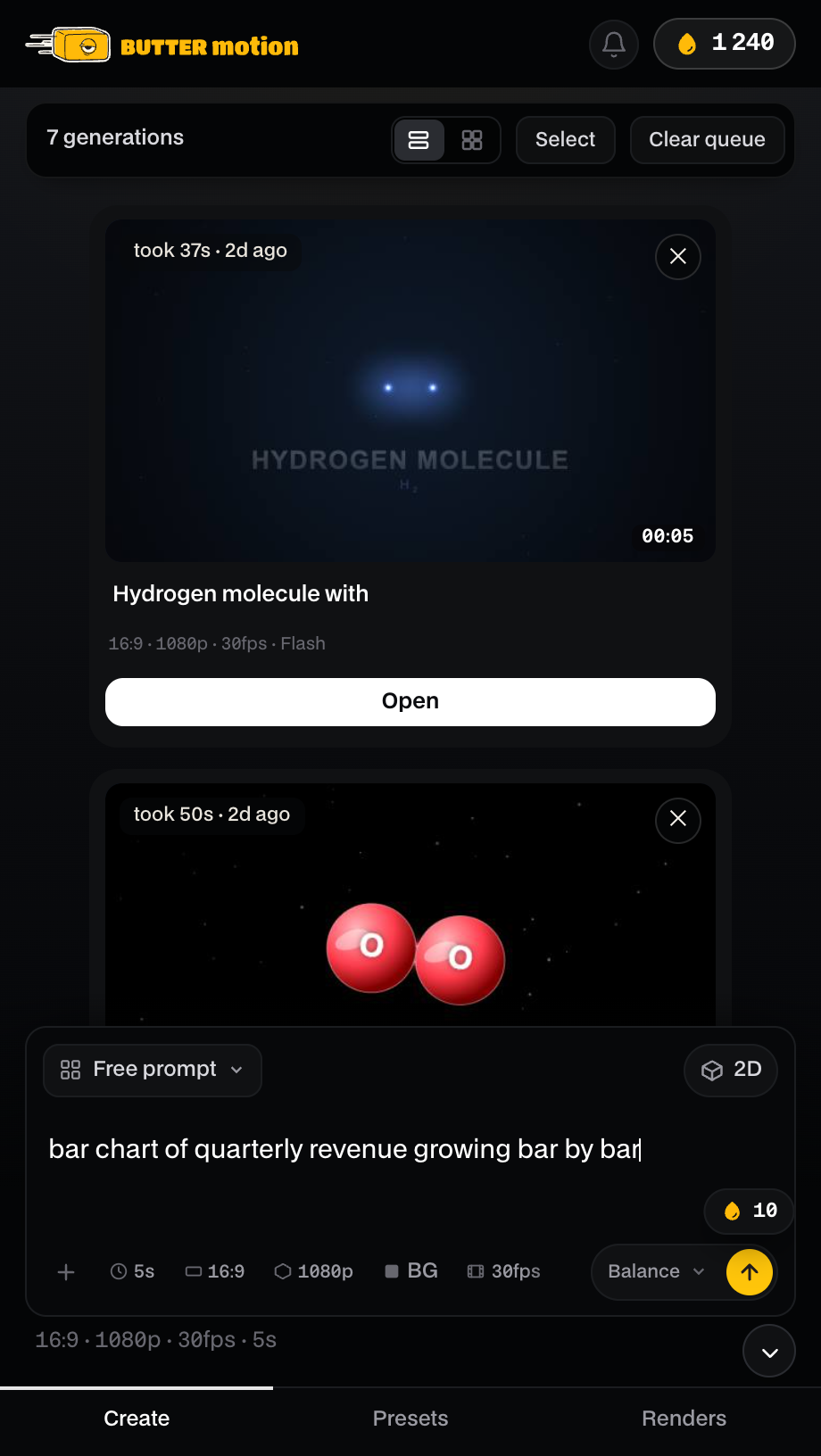
On Flash and Ultra every generation is either 2D (flat shapes and type, the fastest and cleanest) or 3D (real depth and volume). The default is 2D.
- 3D works on Ultra only. On Flash the 3D option is greyed out with "Available on the Ultra tier only".
- On Animation there is no switch: pick one of the four 3D styles instead (3D engraving, Clay 3D, Toon 3D, Low-poly 3D).
- 3D costs nothing extra. You pay the tier price either way.
- Only the switch turns 3D on. Writing "3D", "volumetric" or "isometric" in the prompt does not switch to real 3D: with the switch on 2D, the scene is rendered flat.
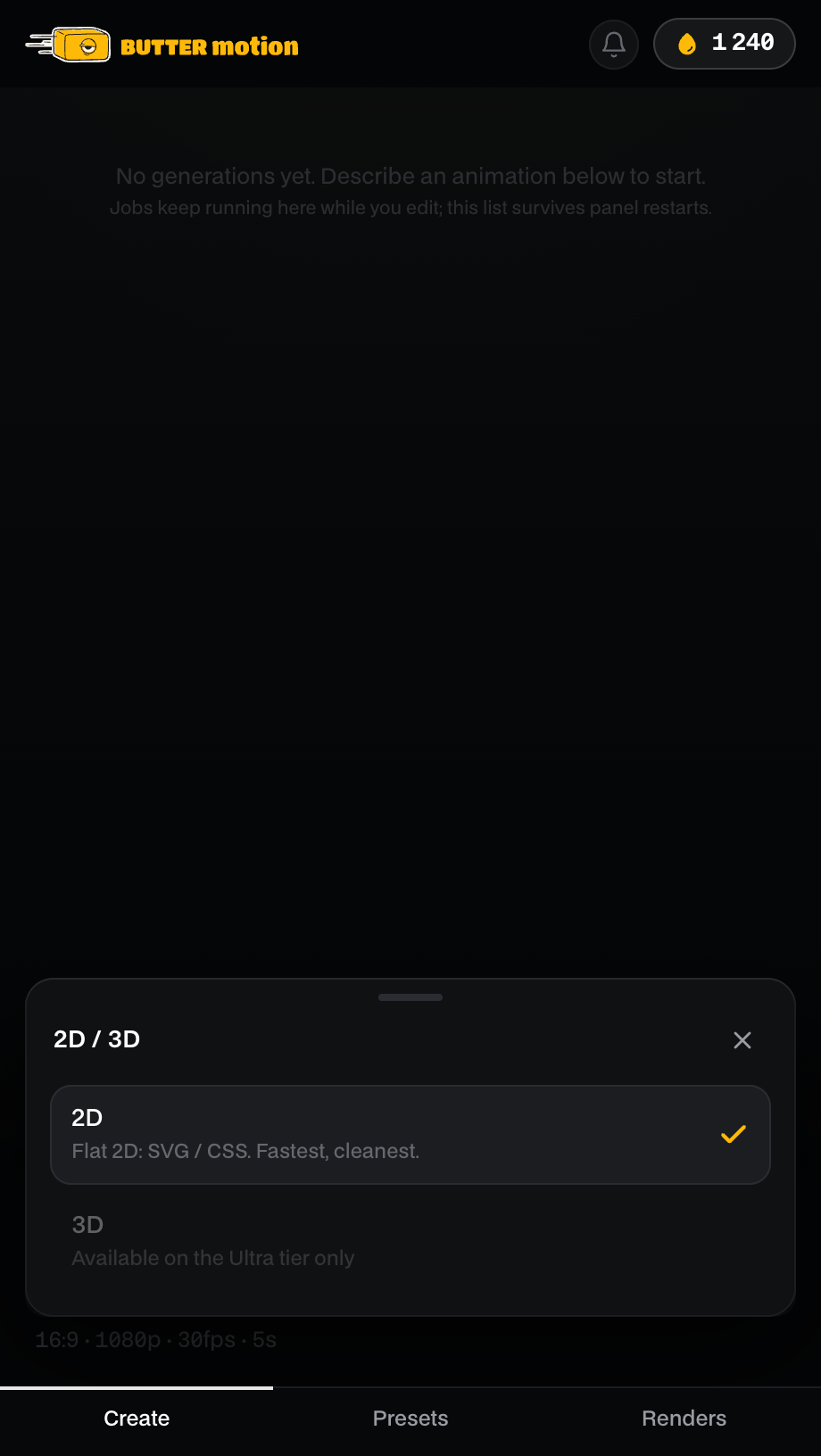
3D shines on things with real depth: a spinning coin, a rotating logo, a scene with layers. For flat charts and text, 2D is usually crisper and faster.
The switch sits at the top right of the prompt field. It's hidden when you attach a reference image. See Writing prompts.