Duration, format & resolution
Below the prompt field is a row of chips that set the shape of your output: how long it runs, its aspect ratio, its resolution, and its frame rate. You can change any of them before you generate, and the summary line under the composer always shows the current combination.
The settings
| Setting | Options | Default |
|---|---|---|
| Length | 3 to 20 seconds (up to 10 on Animation) | 5s |
| Aspect ratio | 16:9, 9:16, 1:1 | 16:9 |
| Resolution | 720p, 1080p, 1440p, 4K | 1080p |
| Frame rate | 24, 25, 30, 50, 60 fps | 30 |
Tap a chip to open its picker and choose a value. The chip updates to show your choice.
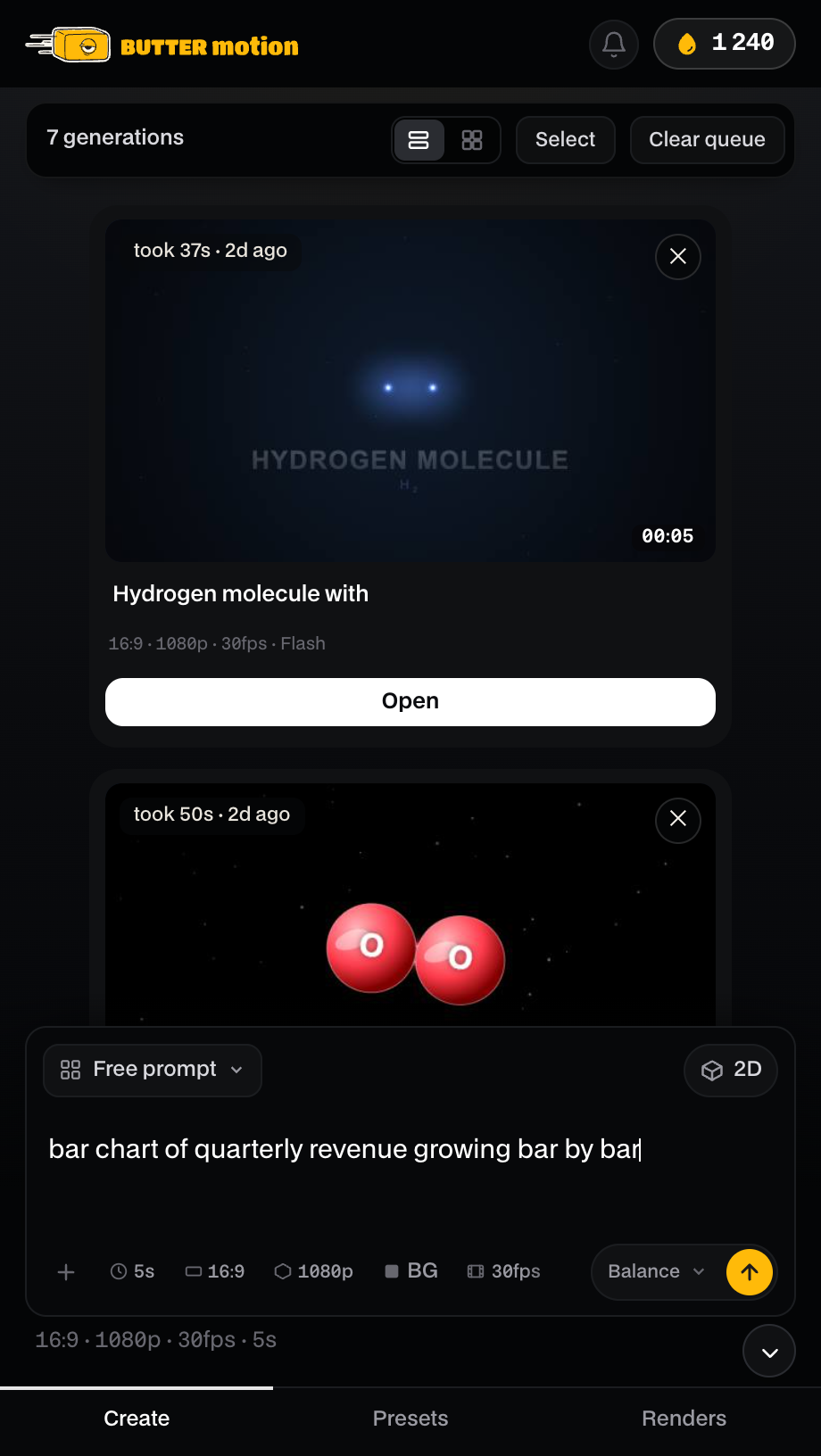
What each one does
- Length: how many seconds the clip runs, from 3 to 20. On the Animation tier the limit is 10 seconds. Five seconds is a good default for a title or a lower third. Go longer for a scene that builds.
- Aspect ratio: the frame shape. 16:9 for standard landscape video, 9:16 for vertical (Reels, Shorts, Stories), 1:1 for square.
- Resolution: the pixel size, from 720p up to 4K. Match it to your Premiere sequence. 1080p suits most timelines, and 4K is for when you need the extra detail.
- Frame rate: frames per second. Match your sequence's frame rate so the clip drops in cleanly. 24 or 30 for most projects, 50 or 60 for smooth fast motion.
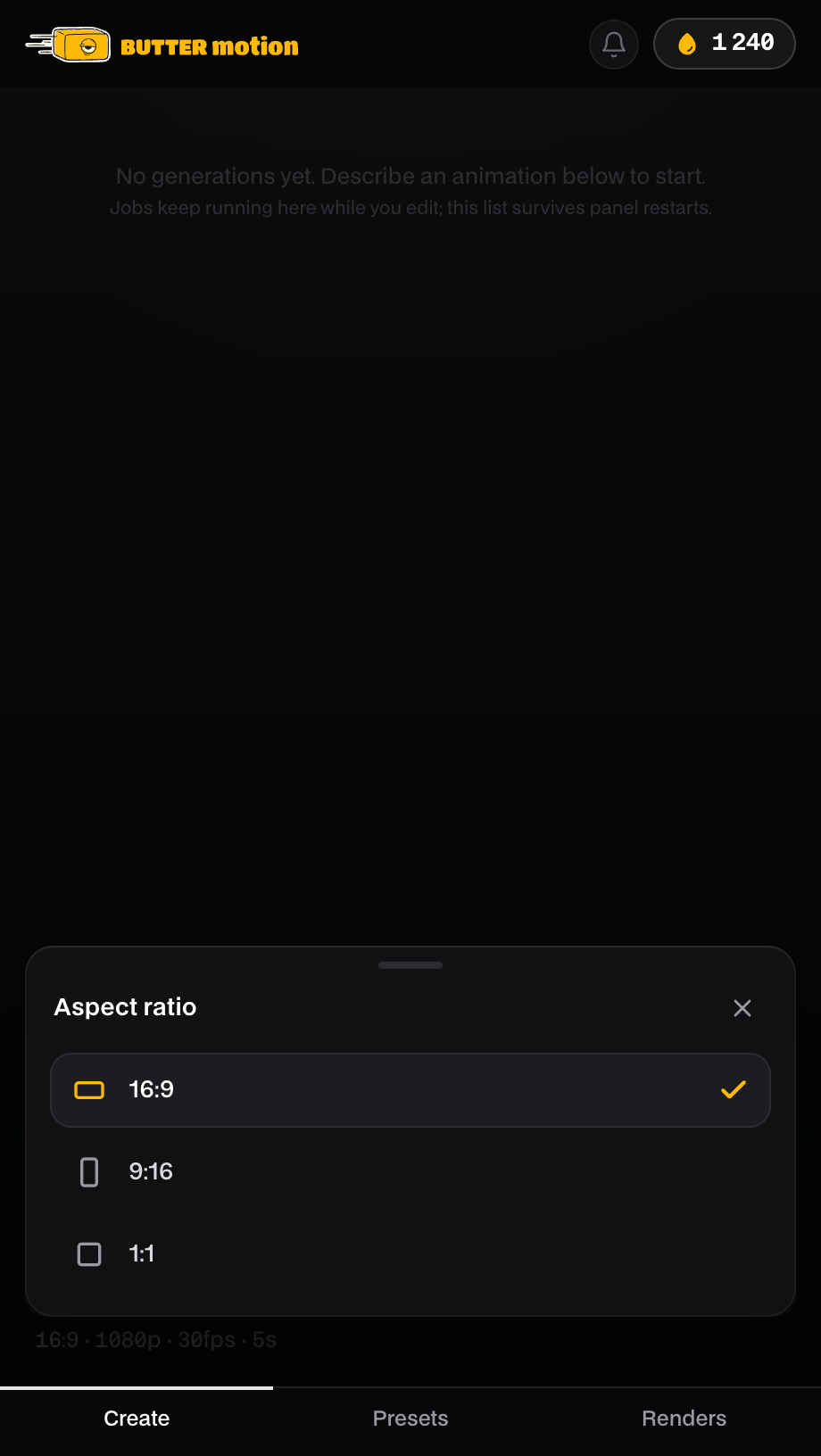
Set the aspect ratio, resolution, and frame rate to match your Premiere sequence, and the render lands on the timeline without conversion.
The summary line
Under the composer, a single line shows everything at a glance, for example 16:9 · 1080p · 30fps · 5s. When you generate on a transparent background, it adds · Alpha at the end. See Background & transparency.
Format doesn't change the price
The credit cost of a generation depends only on the quality tier you pick: Flash, Ultra, or Animation. Length, aspect ratio, resolution, and frame rate don't change what you pay. A 3-second 720p clip and a 20-second 4K clip cost the same at the same tier. See Quality tiers & 3D.