Your first generation
This is the whole flow, start to finish, in about five minutes: describe an animation, generate it, preview it, and drop the clip on your timeline. By the end you'll have a real motion graphic in your sequence.
Before you start, make sure you've installed the Butter Motion app, opened the panel, and are signed in.
1. Open the panel and sign in
Open Premiere and go to Window → Extensions → Butter Motion. If you signed in inside the app already, you're all set. If you see Welcome to Butter Motion with a Sign in button instead, sign in first, since the panel needs your account to generate.
2. Describe what you want
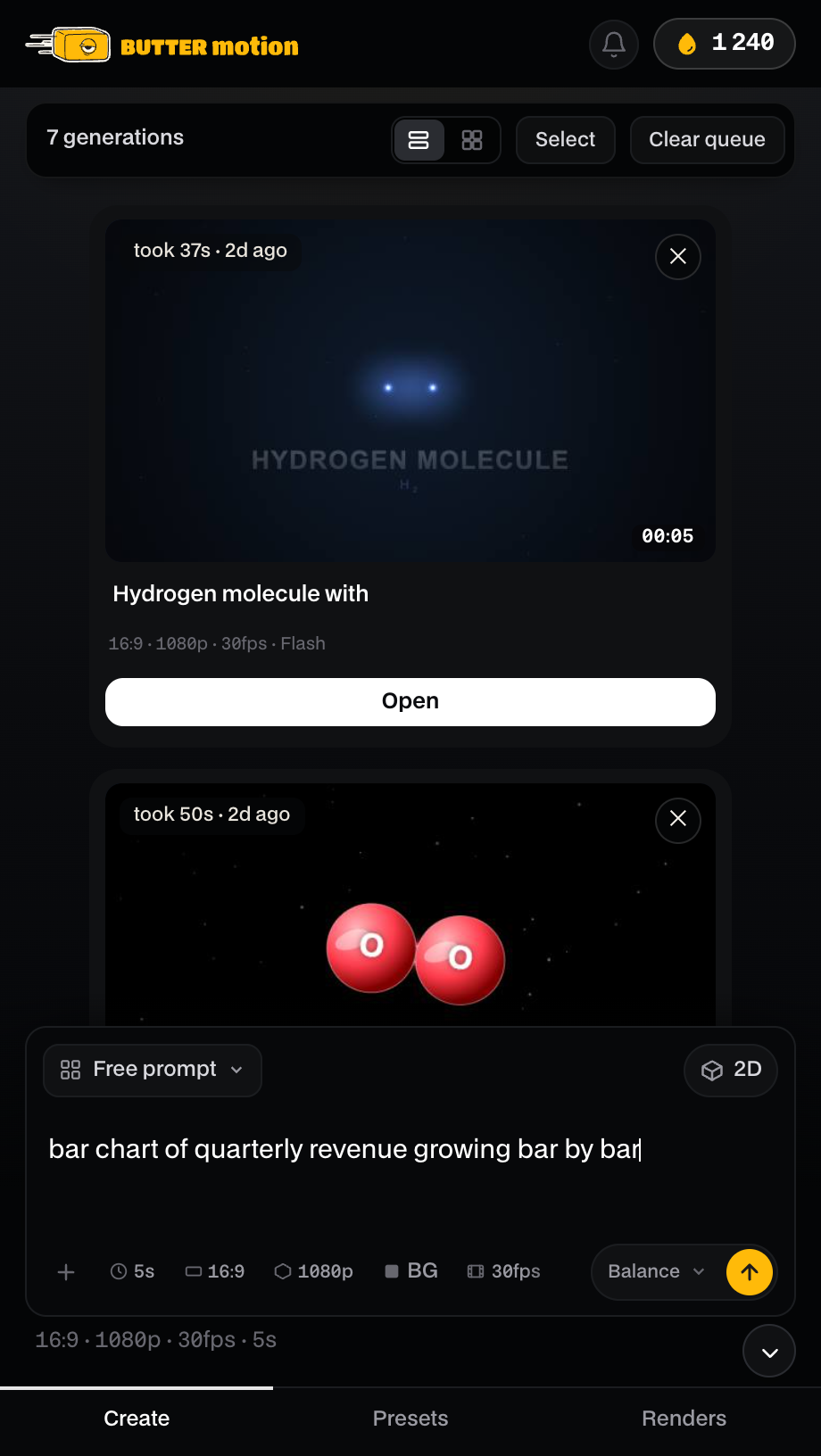
Click the prompt box and type what you want to see. Be specific about the subject and the action. A good first prompt is short and concrete. For example:
«neon logo reveal with a soft glow»
Other prompts that work well to start: «bar chart of quarterly revenue growing bar by bar», «confetti burst over a bold headline», «typewriter text with a blinking cursor», or «progress ring filling to 87%».
3. Pick a quality level
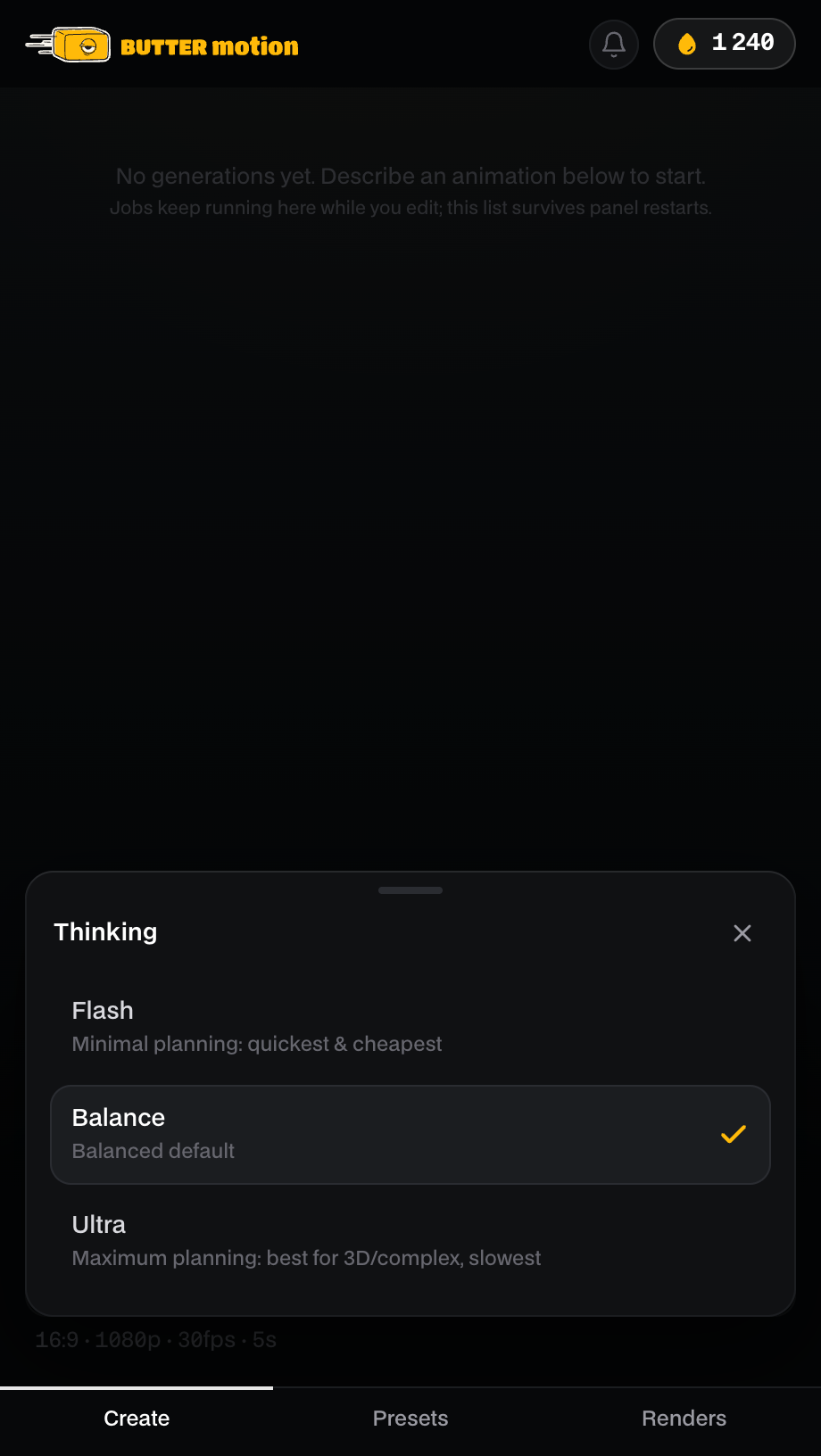
Below the prompt you choose how hard the AI thinks:
- Flash: quickest and cheapest.
- Ultra: careful planning that suits most scenes, 3D included.
- Animation: an illustrated animated scene in a style you pick.
For your first generation you can keep Animation. For charts, app screens or 3D, switch to Ultra.
4. Generate
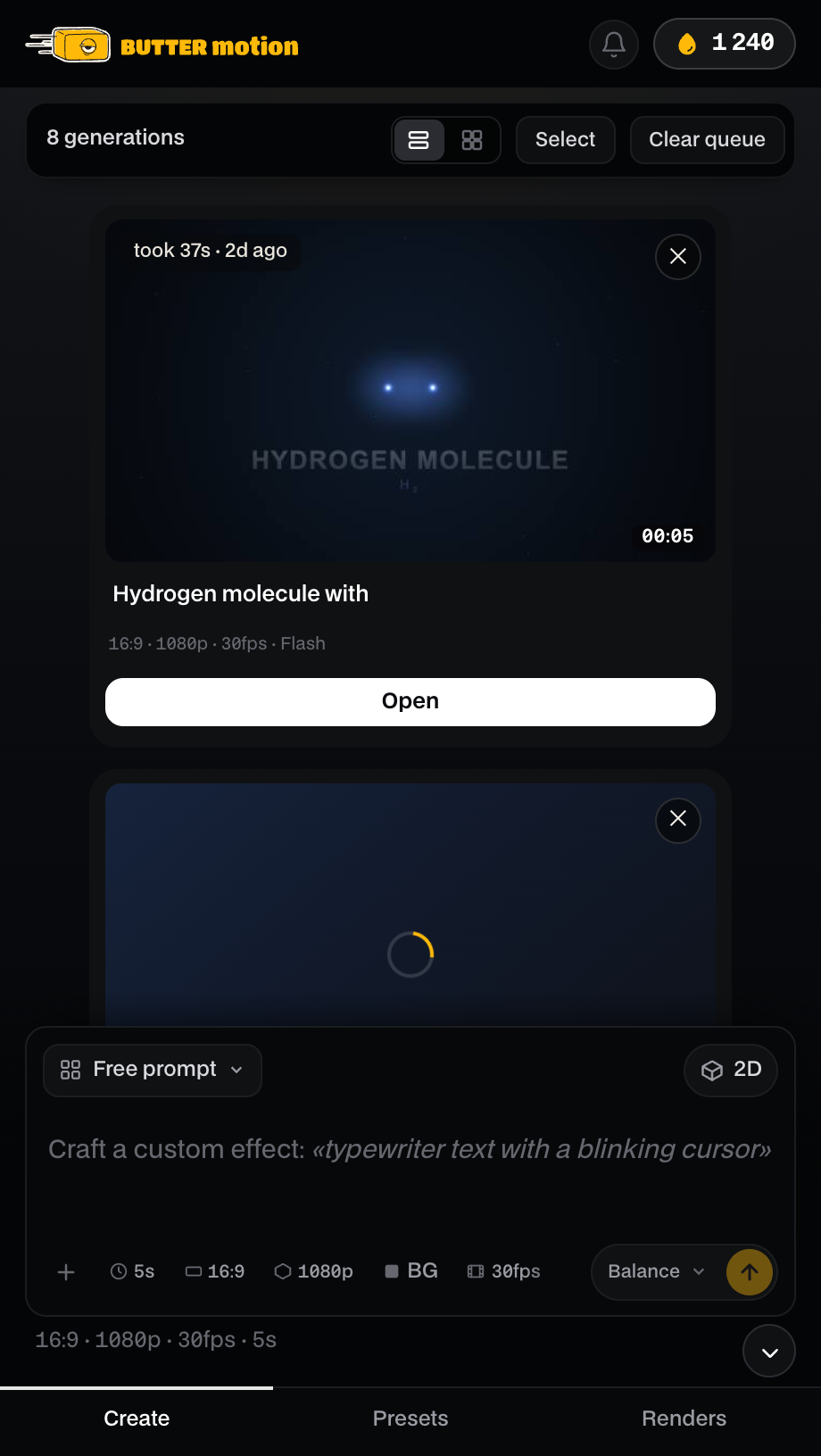
Press the ↑ button (or Cmd+Enter / Ctrl+Enter). The generation goes into the queue and a card appears.
You'll watch it move through a few stages: generating → checking layout → rendering. The preview is blurred while it works, then sharpens when it's ready. A typical short clip takes a few minutes.
5. Preview the result
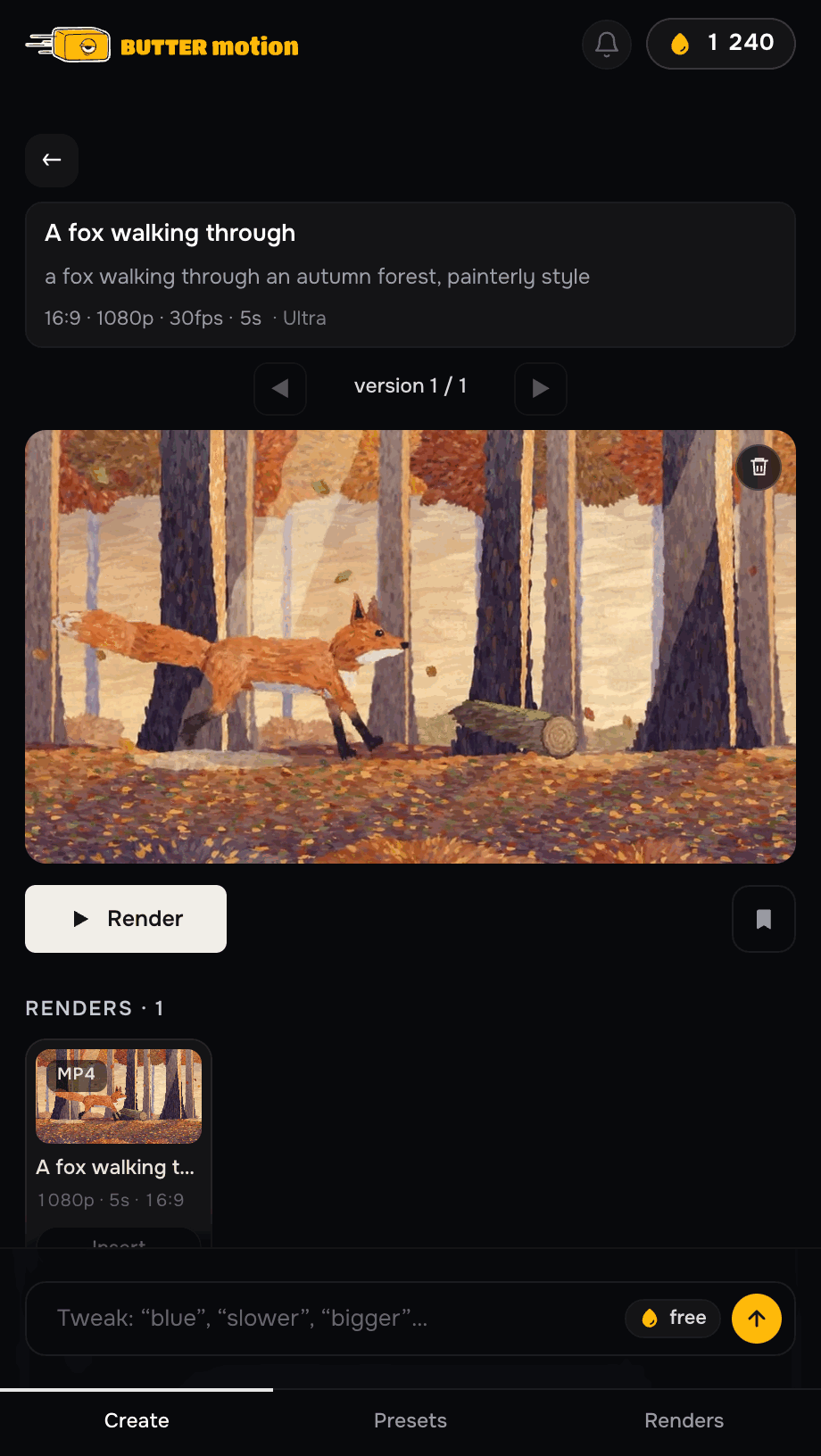
When it's done, the card opens into the result screen with a live preview you can play. Like it? Move on. Want a change? You can tweak it in plain language ("make it slower", "change the text to gold"), and on Pro and Studio your first tweak on each generation is free. On Free each tweak costs 5 credits.
6. Put it on your timeline
Click To timeline, or drag the clip straight onto your sequence. Butter Motion renders the final file locally and drops it in.
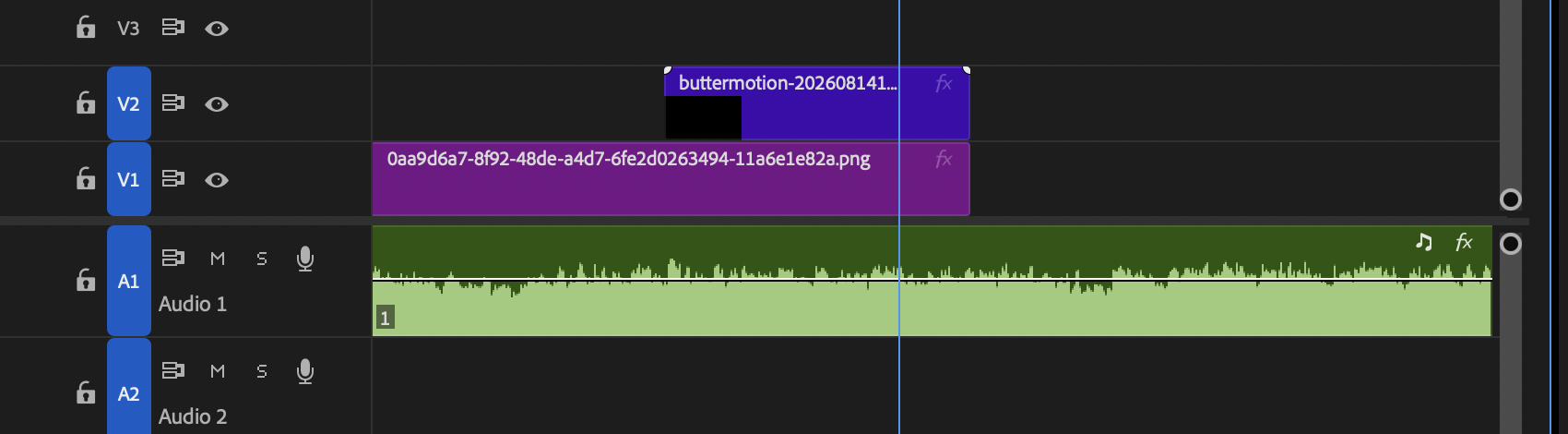
That's it. Your first Butter Motion clip is in your edit. 🎉
What next
- Learn to write better prompts for sharper results.
- Try transparent backgrounds to overlay titles on your footage.
- See how credits work so you know what each generation costs.