Panel missing in Premiere
If Butter Motion doesn't show up under Window → Extensions in Premiere Pro, the extension isn't loading. This is almost always a setup issue on the Premiere side, and it's fixable.
The panel should appear here:
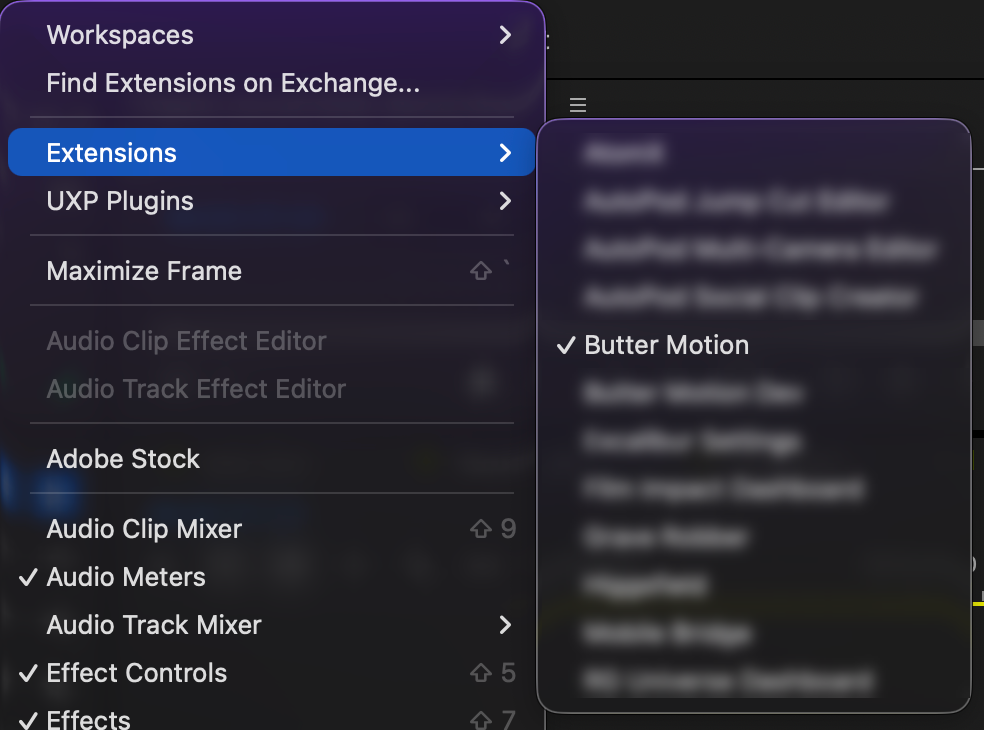
Fix it step by step
- Fully quit and reopen Premiere. Don't just close the project. Quit Premiere Pro entirely, then start it again. The installer enables the setting Premiere needs to load the panel, but Premiere only reads that setting on a fresh start. If Premiere was open during installation, this alone usually brings the panel back.
- Check your Premiere version. Butter Motion needs a recent Premiere Pro. If yours is older, the panel won't load. See System requirements for the supported versions, and update Premiere if needed.
- Reinstall the plugin. Open the Butter Motion app and click Reinstall… under Premiere plugin in Settings (or click Remove… there and install again). It re-copies the panel into Premiere's extensions folder and re-applies the setting that lets it load. Your account, presets and render history are untouched.
- Check your antivirus or security software. On some systems, antivirus or endpoint-protection tools block the panel from being copied into place or quarantine it after install. If you use one, check its logs or quarantine list for Butter Motion, allow it, and reinstall.
📝
On the very first run the system may ask you to confirm opening Butter Motion. If that confirmation was declined, the install stops halfway and the panel never appears. See Install on Windows or Install on macOS.
If it's still missing
If the panel doesn't appear after a reinstall and a full restart of Premiere, email support@buttermotion.com with your account email, your operating system, and your exact Premiere Pro version (you'll find it under About Premiere Pro). See Contact support.