Install on Windows
The Butter Motion app installs the plugin into Premiere for you, there's no separate plugin download. No administrator rights needed.
Before you start
- Quit Adobe Premiere Pro if it's open. You'll reopen it at the end.
- Make sure your PC meets the system requirements.
- Make sure you have room: it needs about 1.2 GB free at minimum, more for a bigger download.
Steps
- Download the Butter Motion app for Windows from your account's Downloads page. It's an
.exefile.
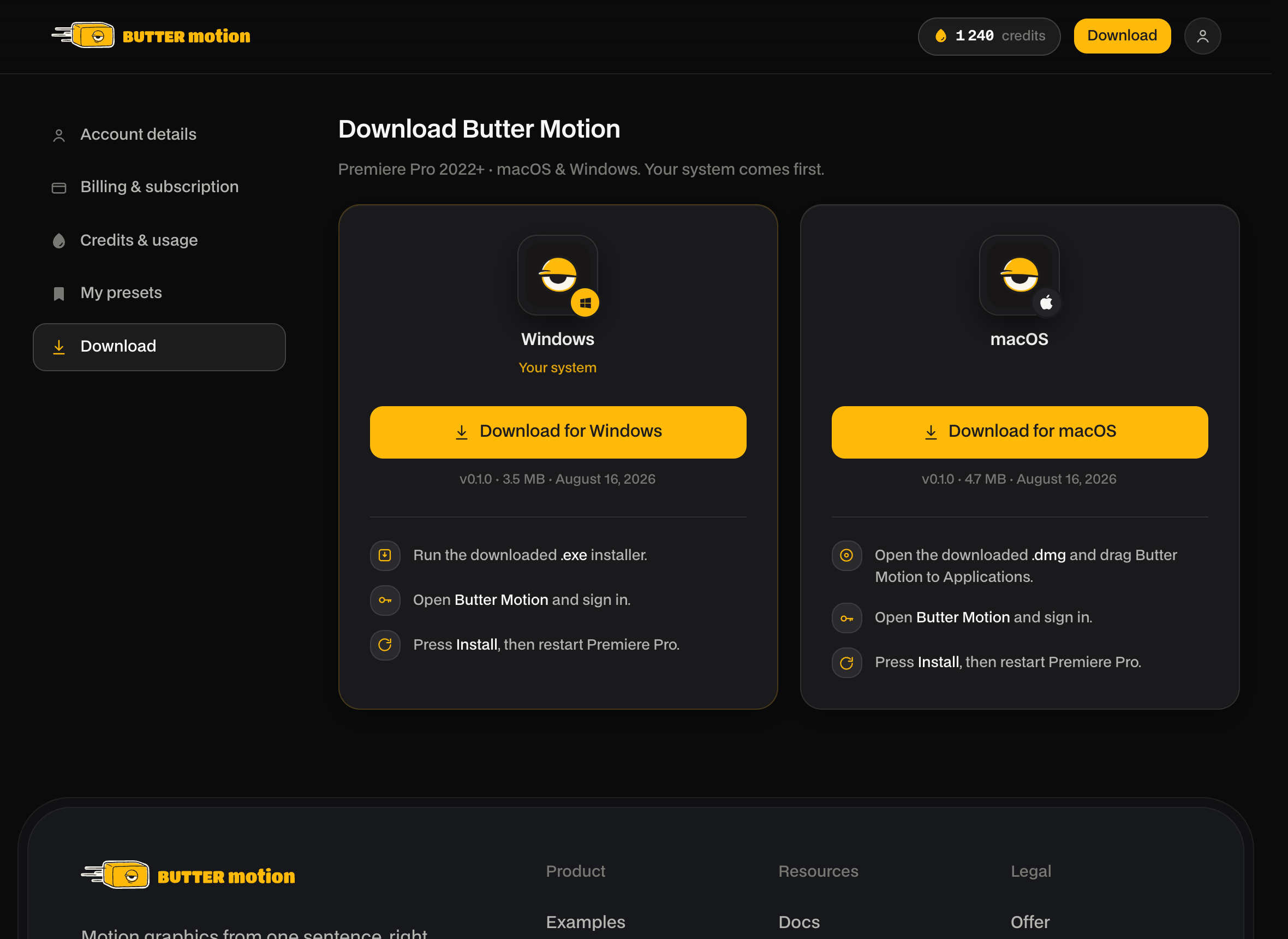
- Double-click the
.exeto run it.
- If Windows shows a blue "Windows protected your PC" screen, click More info, then Run anyway. Often it doesn't appear at all, because that depends on your Windows settings. If you don't see it, just carry on.
- Follow the installer prompts and let it finish. It installs for the current user (no admin prompt) and launches Butter Motion.
- The app opens on a Sign in screen. Click Sign in via browser, approve this computer in the browser tab that opens, and come back to the app.
- Click Install. The app downloads and sets up the plugin inside Premiere, moving through stages from Downloading to Starting.
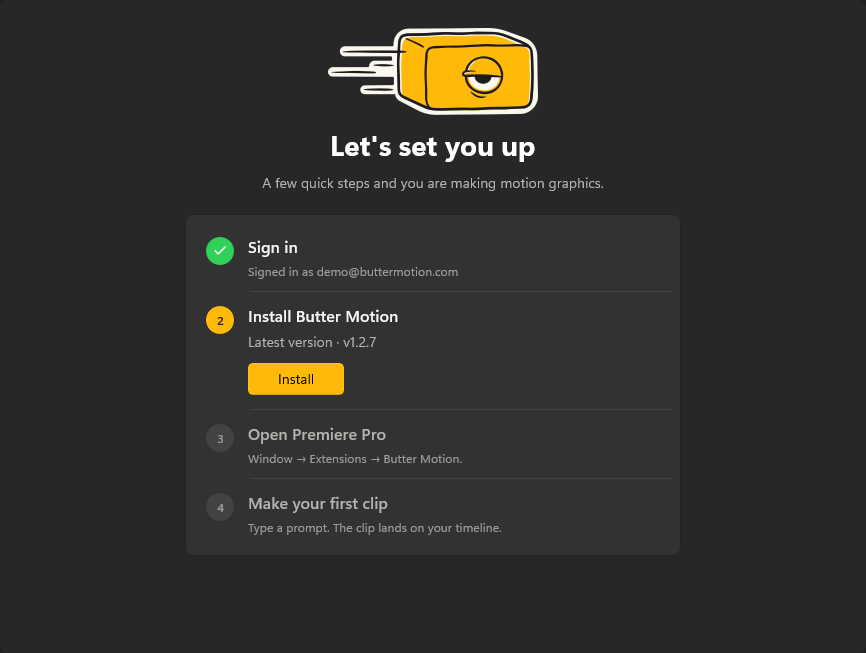
- When the app shows Everything's ready, restart Adobe Premiere Pro. The panel only appears after a full restart of Premiere.
Check that it worked
After installing, open the panel in Premiere:
- Open the panel in Premiere via Window → Extensions → Butter Motion. Since you signed in inside the app, the panel should already be signed in. If it isn't, use its own Sign in via browser button, see Sign in & connect a device.
If the panel doesn't show up, quit Premiere completely and reopen it. If it's still missing, see Panel missing in Premiere.