Queue & generation feed
Every generation you start lands in the feed on the Create screen. Each one is a card that shows its progress live, and the queue keeps running even if you close the panel. Your jobs finish in the background while you keep editing.
Stages of a generation
A generation card moves through these stages as it works:
generating → checking layout → rendering
- generating: the AI is building your animation. If another job is still running, the card waits at this stage first.
- checking layout: the result is being checked so nothing is cut off or empty.
- rendering: the clip is being rendered to a file.
After rendering, the card is done and ready to open. A render you start yourself with the Render button shows queued → rendering instead: while it waits, its button reads "In queue · N ahead" and there is no timer.
The card's preview is blurred while it works and sharpens when it's ready. A timer shows how long it's been running, and a Cancel button stops it.
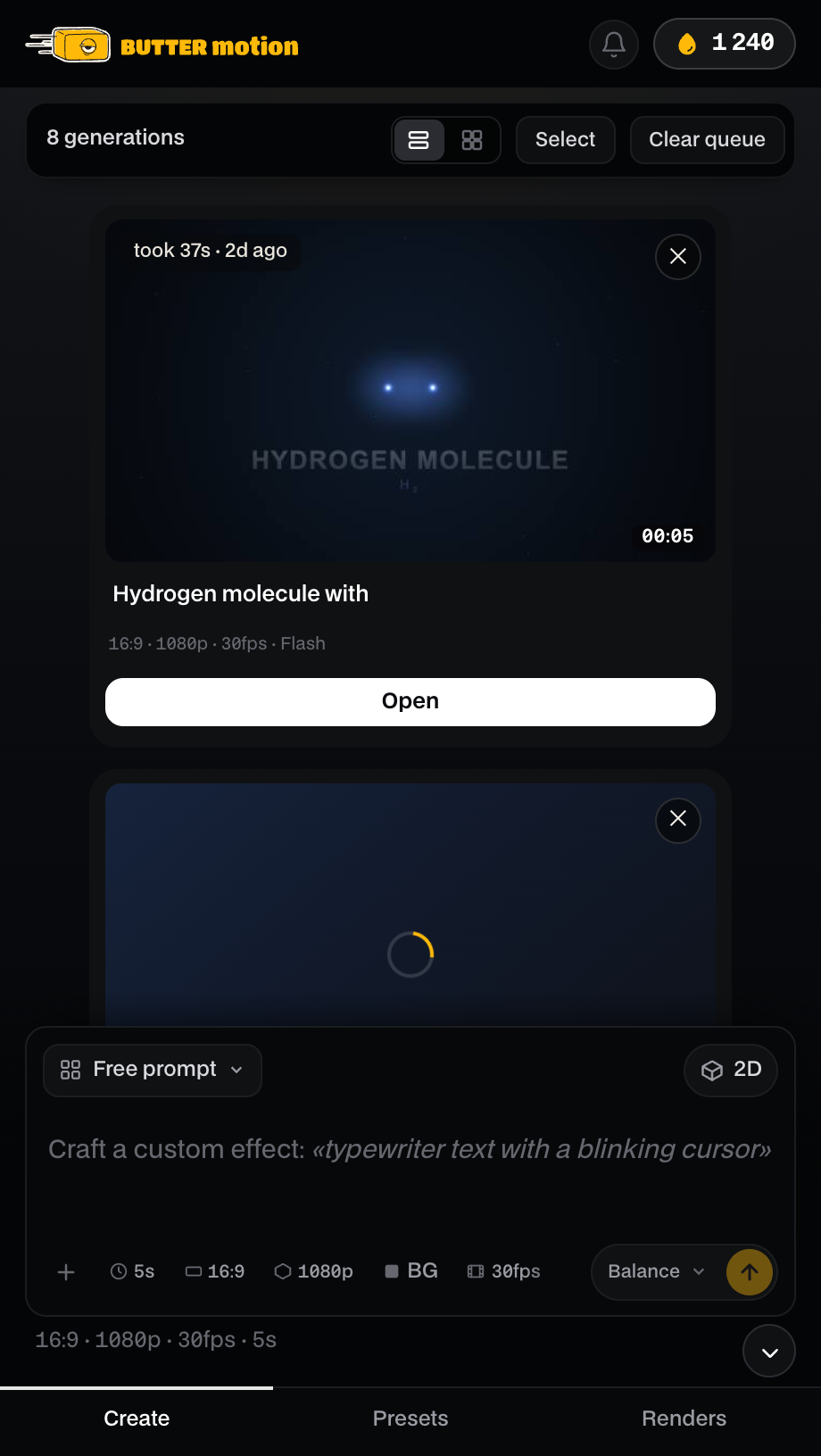
The queue survives a panel restart. If you close the panel or quit Premiere mid-generation, the jobs keep going, and the feed shows them again when you reopen.
State badges
A card carries a badge showing its state:
- QUEUED: a render waiting its turn.
- GENERATING: actively working. The badge tracks the current stage, so it also reads RENDERING, CHECKING LAYOUT or APPLYING EDIT depending on what's running.
- PREVIEW: the generation is finished and playable, with no render file yet.
- RENDERED: finished, with a file on disk.
- WAITING: the connection dropped on a paid job the server had already accepted. Nothing is lost and nothing is charged twice. The result is delivered on its own once you're back online, so don't retry.
- FAILED: something went wrong. See below.
- CANCELLED: you stopped it.
Jobs run one at a time. A render that says "In queue · N ahead" isn't stuck. It starts the moment the one in front of it finishes.
Chat view and tile view
The feed has two layouts, switched with the toggle at the top:
- Chat view: a vertical stream, newest at the bottom, like a chat. The feed follows your newest generation as it starts.
- Tile view: a grid of thumbnails, good for scanning many results at once.
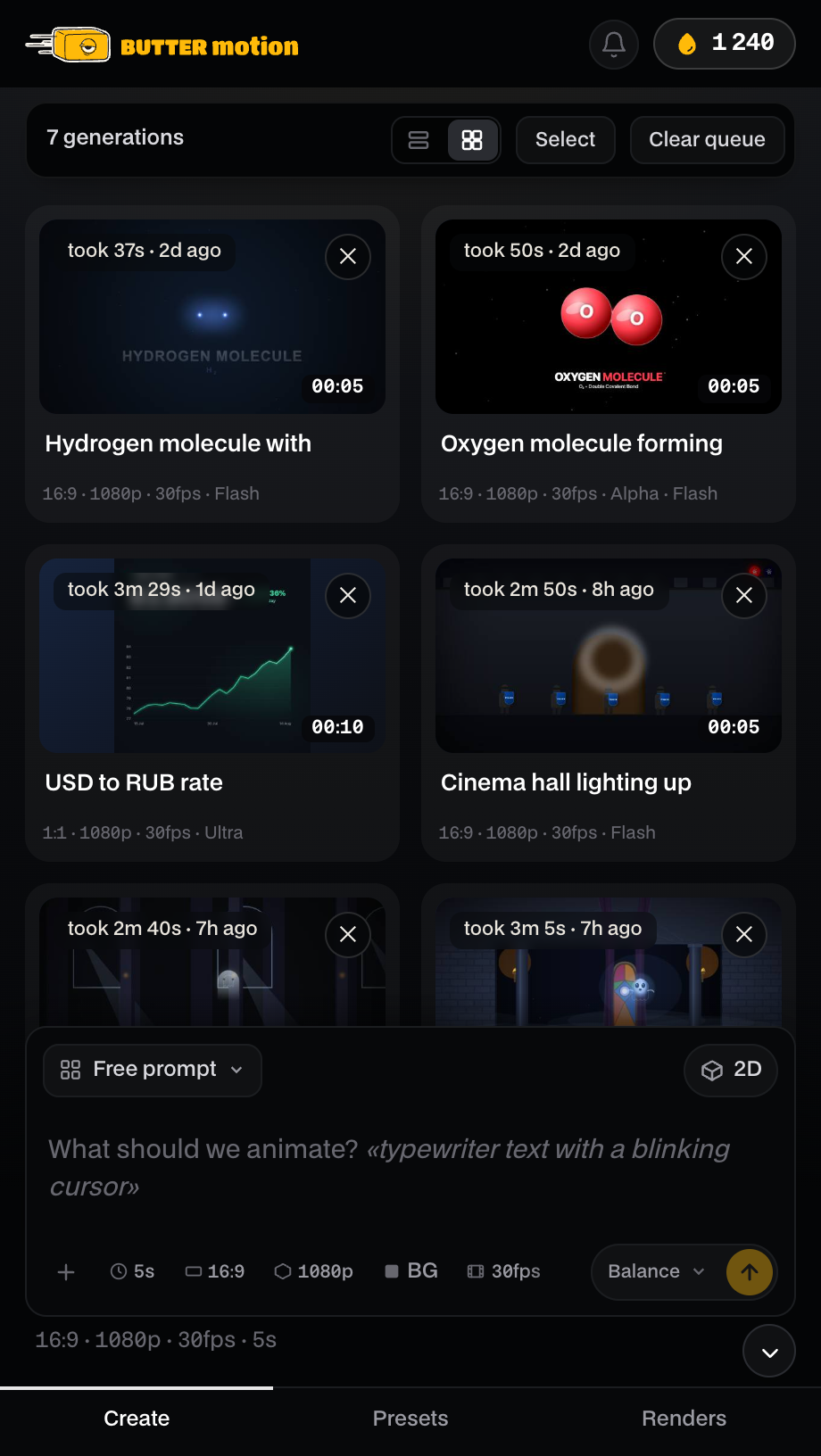
Select and clear
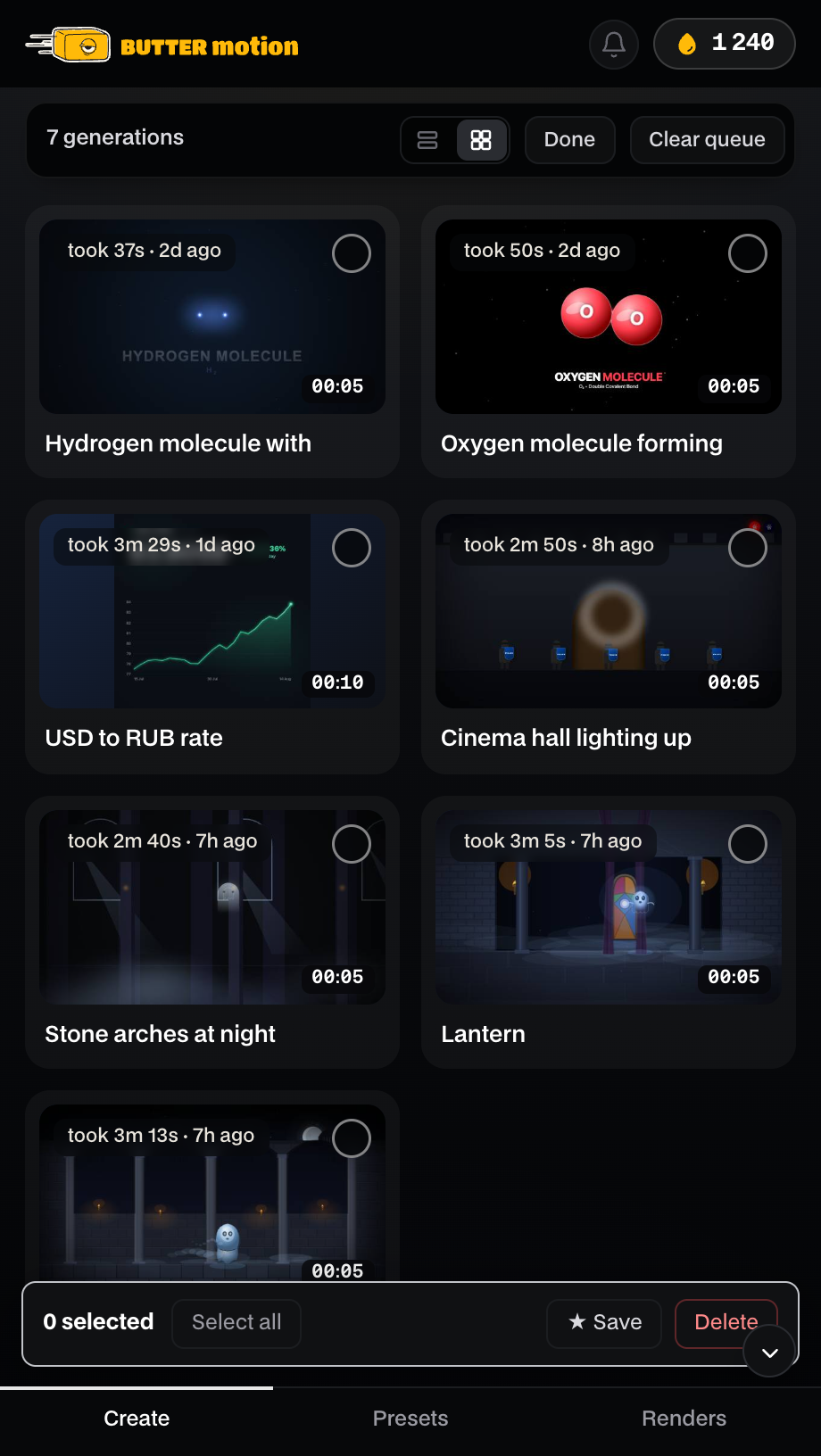
- Select: turn on selection mode to pick several cards at once, then save them all to your library or delete them together. Select all grabs everything, and Done exits selection mode.
- Clear queue: clears the whole list. This only clears the feed. Rendered files you saved stay on disk and in your Library.
When a card says FAILED
A FAILED badge means the generation didn't complete. Click the badge to see what happened, with the options to delete or retry. In almost every case a failed generation is refunded automatically, so you don't lose credits over it. For the full picture, see A generation failed.