How to write a prompt that gets the animation you meant
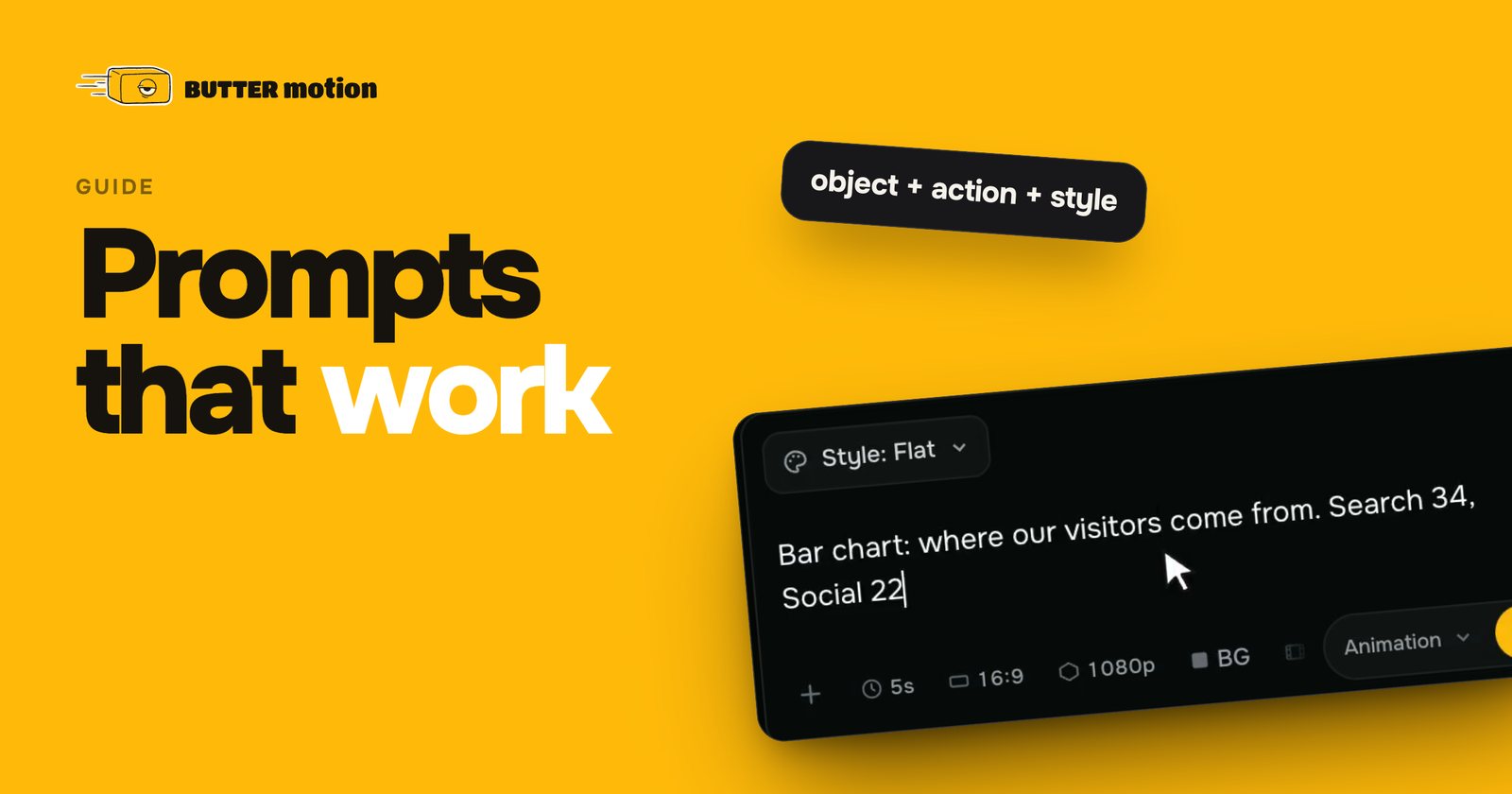
Most disappointing generations come from the same place: the prompt described a mood, not a scene. "Something cinematic and modern for the intro" gives the model nothing to build. It has to invent the subject, the text, the timing and the look, and it will invent all four differently from what you had in your head.
A prompt works better when you treat it like a brief for a junior motion designer who cannot ask you questions. Short, concrete, in plain language.
The five things worth saying
You do not need all of them every time, but a prompt that covers these almost always lands close:
- What is on screen. A bar chart, a logo, a name plate, three phone screens, a counter.
- What it does. Grows, assembles, slides in from the left, counts up, dissolves.
- The exact text. Put it in quotes. Words you type get used as typed, including capitals and punctuation.
- The numbers. If a chart shows values, give the values. Otherwise you get plausible looking invented ones.
- The mood, in one or two words. Clean and corporate, playful, technical, neon.
Everything else (duration, aspect ratio, resolution, transparent background, quality tier) is set with the controls next to the prompt field, not with words in the prompt. Writing "make it 4K vertical" in the text does nothing. See Duration, format and resolution for where those live.
Weak versus workable
| Weak prompt | Workable prompt |
|---|---|
| A cool intro for my channel | Logo text "NORTHWIND" assembles from thin yellow lines on a dark background, then a thin underline draws left to right. Clean, technical. |
| Show our growth | Bar chart of four bars growing one by one: 12, 19, 26, 41. Labels Q1 to Q4. Dark background, one accent color. |
| Nice title for the speaker | Lower third with "Anna Petrova" on the first line and "Head of Production" on the second. Slides in from the left, holds, slides out. |
The workable versions are not longer for the sake of it. They are longer where it matters: subject, action, text, numbers. Take the middle one apart and you get subject, action, four values so nothing is invented, labels in the order they appear, five words of style. Five decisions in one sentence, none left open. That is the shape to copy.
What does not help
- Adjective stacks. "Ultra premium hyper modern award winning" adds no information. One or two style words beat ten.
- Brand references. Asking for the look of a specific studio or product gives you a guess, not that look.
- Instructions about the tool. "Use a 30 frame ease" or "add a Gaussian blur effect" describes an editor's timeline, not the scene. Describe the result you want to see.
- Two scenes in one prompt. If you need an intro and an outro, generate them separately. One clip, one idea.
- A paragraph where a sentence would do. The field holds 2000 characters and you will almost never want them. A long prompt buries the subject in qualifiers.
One category costs money rather than time. A prompt the content policy turns down comes back declined, and declined generations are not refunded: the request did go out. Reword rather than retry. A generation failed has the difference between that and a real failure, which is refunded automatically.
Write the text you want on screen inside quotes. It is the single change that fixes the largest share of "the words came out wrong" results.
Give it real numbers, or let it fetch them
Invented numbers are the fastest way to embarrass yourself in a client review. Type the values and they get used. For a few kinds of scene there is a second option, because Butter Motion pulls real figures off the internet at generation time:
- Currency and crypto. "EUR/USD chart for the last week" or "bitcoin candlestick chart" plots real quotes.
- Weather. "Weather widget for Tbilisi" fetches the current temperature and a seven day forecast for that city.
- Today's date. "Calendar for today" gets the actual date. The model does not know it on its own.
Your own numbers stay sacred: write "Bitcoin $73,500" and nothing is fetched or overridden. Words like "real" or "current" force the fetch, "made up" or "sample" turn it off, and if a source is unreachable the scene falls back to the numbers in your prompt. So: a figure the client verified gets typed, a mock dashboard gets fetched.
Start from a frame instead of a blank field
You can attach an image and have the animation built from what is in it. Click + in the composer, paste with Ctrl/⌘ + V, or drag a file onto the field. Leave the prompt empty and the picture drives everything. Add a short prompt, "make the chart bars rise one by one", and the image sets the look while your sentence sets the motion. Images have to be 25 MB or smaller.
For an editor this beats describing a palette. Grab a frame from the sequence you are cutting and the animation comes back in those colors, instead of a palette you then argue with in the controls.
With an image attached the 2D / 3D switch disappears from the composer, since the work is driven by what is in the picture.
When 3D turns itself on
Every generation is either 2D (flat, fastest, cleanest) or 3D (real depth and volume). 2D is the default, 3D lives on the Ultra tier only, and turning it on adds nothing to the price.
This is the one place where a word in your prompt changes a setting, which is why it catches people out. On Ultra, asking for a 3D or volumetric scene in words switches real 3D on by itself even with the toggle off, and saying "2D", "flat" or "not in 3D" always wins. On Flash the word does nothing at all: that tier always renders flat.
Worth reaching for on a spinning coin, a rotating logo, layers that pass in front of each other. Not worth it on a bar chart or a title card, which come back crisper and faster in 2D. Full picture in Quality tiers and 3D.
Fix it with an edit, not a rewrite
When a result is close but not right, do not start over. The result screen has an edit field where you write the correction in the same plain language: "make the numbers gold", "slow the last third down", "remove the subtitle line". Butter Motion reads the composition you already have and applies just that instruction, so the parts you liked stay where they are. Each edit is kept as a new version of the card, with a pager under the header ("2 / 5") to move between them, so a bad edit costs you the wait and nothing else.
The money side: the first edit of every generation is free on Pro and Studio, and each one after that is 5 credits. Hence a small tactic. One instruction per edit lands more reliably than a list, but if two things are genuinely wrong, put both into the free first edit rather than paying for the second. See Editing a generation.
For precise changes there is a second path: the customization controls change colors, text, numbers and fonts by hand, without another generation. Free on every plan, every time. Usually the fastest way to get a client's exact brand color in place, and the only sane way to retype a name you spelled wrong.
Pick the tier for the job
The quality tier is the only thing that changes the price of a generation. Not length, not resolution, not aspect ratio, not transparency, not 3D.
| Tier | Credits | Where it earns its keep |
|---|---|---|
| Flash | 7 | Title cards, lower thirds, fast drafts. |
| Ultra | 10 | Right for most prompts: depth, many moving parts, 3D. |
| Animation | 15 | A hand-drawn animated scene in a style you pick. |
A simple lower third rarely needs Ultra, and a busy 3D product shot rarely comes out well on Flash. The price of the current tier floats above the Generate button before you click, so there is nothing to work out in your head. What is free and what is not is in How credits work.
A workflow that saves credits
- Write a concrete prompt, three or four sentences.
- Generate on Ultra.
- If it is close, use the first edit (free on Pro and Studio) to correct one thing.
- Use the controls for exact colors, text and numbers.
- Render and drop it on the timeline.
Most working clips are done at step four. If after two edits the result is still wrong in kind rather than in detail, the prompt is the problem, not the model: rewrite the subject and the action, and generate again.
The checklist before you press send
- The subject is a thing, not a feeling, and the action is a verb you could act out with your hands.
- Every word that appears on screen is inside quotes, and every number is either in the prompt or deliberately left to be fetched.
- It is one scene, not two.
- The chips under the field match the sequence: aspect, resolution, frame rate.
For a worked example of all of this on one graphic, prompt to timeline, see A lower third for an interview.